Balance alerts
A balance alert watches one token card and sends an email, Slack or Telegram message when its current balance goes below or above an amount you set. Use it for a hot wallet running low, a fee account that needs topping up, or a cold wallet that should never move.
Alerts are on Portfolio → Notifications, in both portfolio and accounting entities. Owners, admins and users can set and change them. Viewers see the list and each alert's details but cannot change anything, and guests cannot open the page.
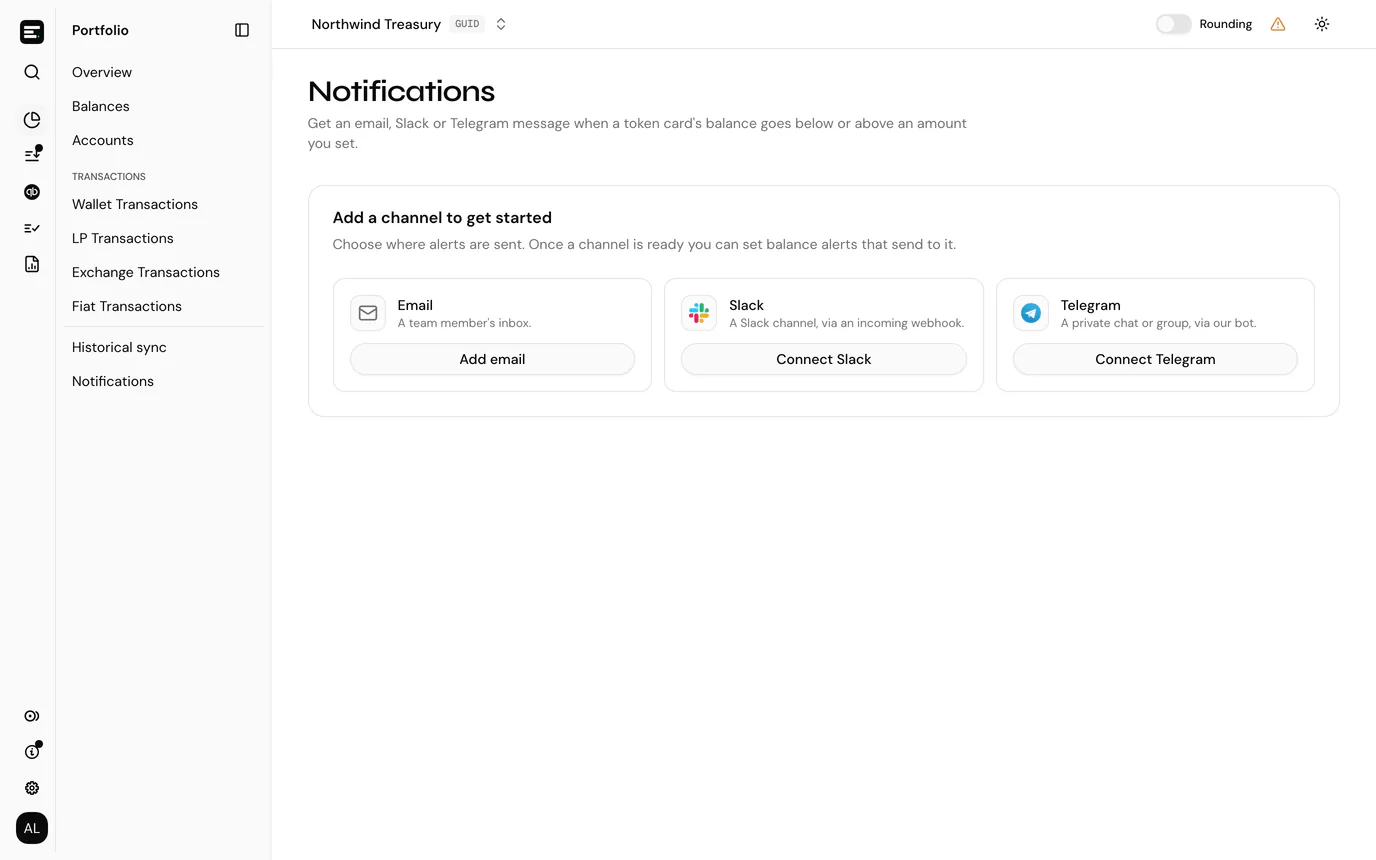
An alert sends to notification channels. Add a channel first; until the entity has one, the page only offers channel setup.
Set an alert
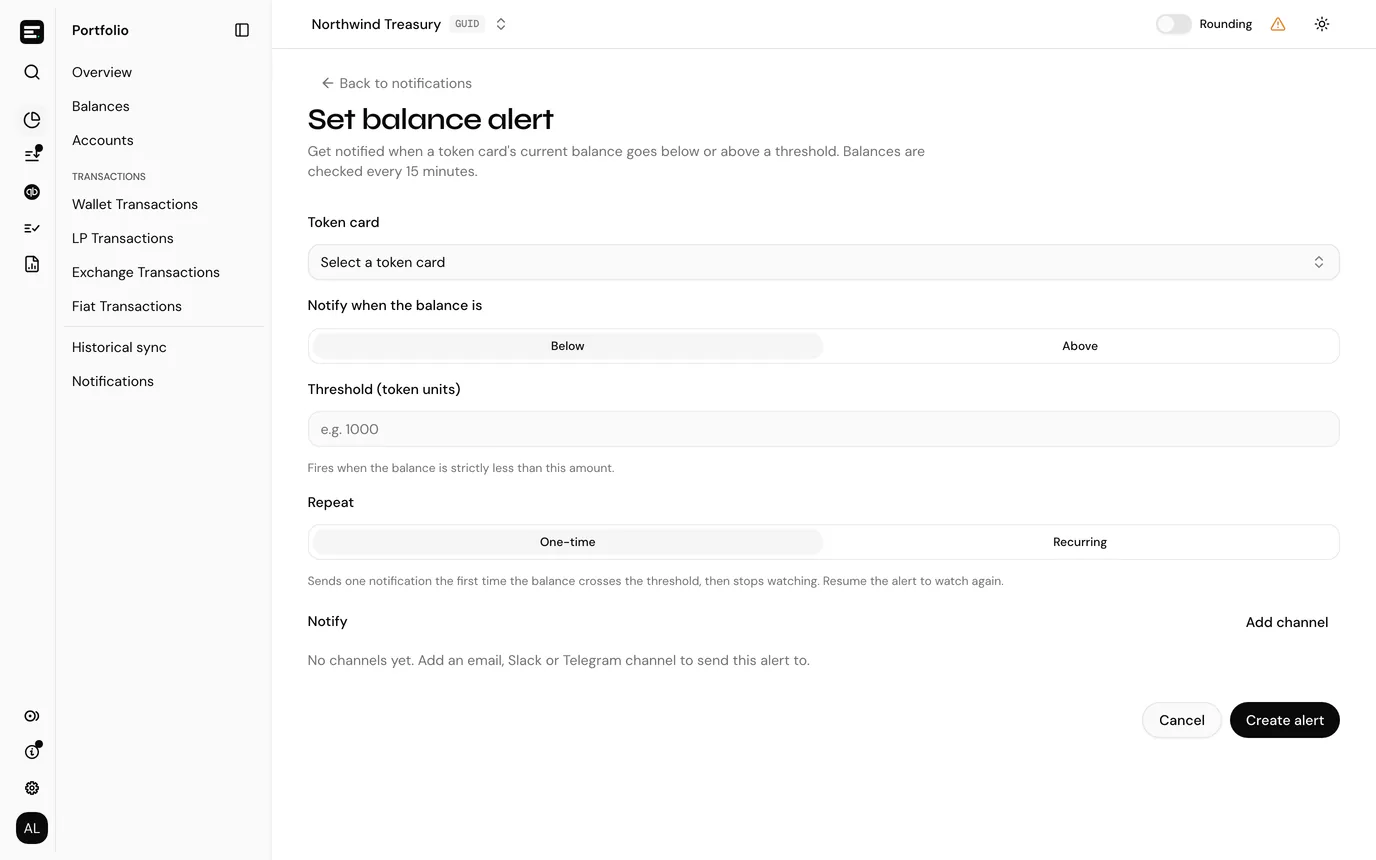
- Select Set alert in the page header. The Set balance alert page opens.
- Pick the Token card. Search by token, wallet or reference. The card's Current balance shows underneath.
- Under Notify when the balance is, choose Below or Above.
- Enter the Threshold, in the token's own units (not its value in currency). The alert fires when the balance is strictly less than (Below) or greater than (Above) this amount. Below with a threshold of 0 is refused, because a balance never goes below 0.
- Choose how it repeats under Repeat: One-time or Recurring (see below).
- Under Notify, pick one or more channels. Add channel beside the field adds a new one without leaving the page.
- Select Create alert.
Balances are checked every 15 minutes. If the balance is already past the threshold when you set the alert, the form warns you that it fires on the next check.
One-time or recurring
| Repeat | Behaviour |
|---|---|
| One-time | Sends one notification the first time the balance crosses the threshold, then stops watching. Resume the alert to watch again. |
| Recurring | Sends a notification every time the balance crosses the threshold. After each one, it waits for the balance to move back before it can notify again. |
A recurring alert does not repeat while the balance stays past the threshold. It notifies once, then again only after the balance has moved back and crossed a second time.
From a token card
A token card's page has a Balance alerts card saying how many alerts the card has. Create alert opens the alert form with the card already picked; once the card has alerts, the button reads View alerts and opens Balance alerts, the Notifications page filtered to that card, with Back to token card. See token card detail.
The Portfolio page also shows a Know the moment a balance moves banner, whose Set up alerts opens Notifications.
The alerts list
| Column | Shows |
|---|---|
| Wallet | The account and chain. |
| Token | The token, with the token card reference linking to the card. |
| Status | See below. Hover the badge for what it means. |
| Current balance | The latest balance, and how far it is from the threshold, or Past threshold. |
| Created (UTC) | When the alert was set. Hover for when it was last updated. |
Search by wallet, token or channel, and filter by status. Tick alerts to Pause or Resume several at once.
| Status | Meaning |
|---|---|
| Watching | Waiting for the balance to cross the threshold. |
| Triggered | A recurring alert that has sent a notification. It can notify again once the balance moves back past the threshold. |
| Completed | A one-time alert that has sent its notification and stopped watching. Resume it to watch again. |
| Paused | No notifications are sent. |
A Watching alert whose balance is already past the threshold says it notifies on the next check.
Change, pause or delete an alert
Select a row to open Balance alert, which shows its condition, repeat, status, current balance, channels, when it last triggered, and when it was created and updated.
| Button | What it does |
|---|---|
| History | Opens Alert history: every notification sent, with its time (UTC), the balance, the channel and whether delivery was Sent or Failed, with the reason for a failure. |
| Edit | Changes the direction, threshold, repeat and channels. The token card cannot be changed. Saving starts the alert watching again from scratch, unless it is paused. |
| Pause / Resume | Pause stops notifications. Resume sets a paused or completed alert back to Watching. |
| Delete | Removes the alert after a confirmation. Notifications already sent are not affected. |
An alert that shows No channels under Channels lost its last channel when that channel was deleted. Edit it and pick another, or it notifies nobody.
Next
Notification channels covers adding, testing and removing the places alerts go.