Hold matches
Some movements have two legs. A swap sends one token out and brings another back; a bridge takes value off one chain and delivers it on another. On-chain these are separate transactions, often minutes or hours apart, and posting them independently leaves both sides floating.
A hold account is where those legs land, and a match is what ties them back together.
Select Accounting in the sidebar's icon rail, then Matching → Hold Matches. The entry carries a badge with the number of postings still waiting to be matched.
Before you start
Hold matches needs two things in place:
- QuickBooks integration switched on for the entity. Without it the page explains that an owner or admin can enable it, with a QuickBooks settings link to Settings → Entity → QuickBooks. See QuickBooks.
- At least one hold account. Add it from QuickBooks → General Ledger → Chart of Accounts, choosing the type Hold. See QuickBooks accounts. The type is what puts the account on this page.
With neither in place the page tells you which is missing rather than showing an empty table.
Choosing the account
The Hold account picker at the top lists each hold account with its unmatched count. Everything below it (unmatched postings and existing matches) belongs to the account you pick.
Hold accounts can be linked to one another from the account's own page. A match may then span the linked set rather than a single account, which is what you want when the two legs of a bridge post to different accounts.
Restricting the categories shown
Match categories on the account's page limits which posting categories appear here. Selecting none shows every category.
Use it when a hold account carries more than swap and bridge traffic and you want the matching view to show only the postings that are actually candidates.
Making a match
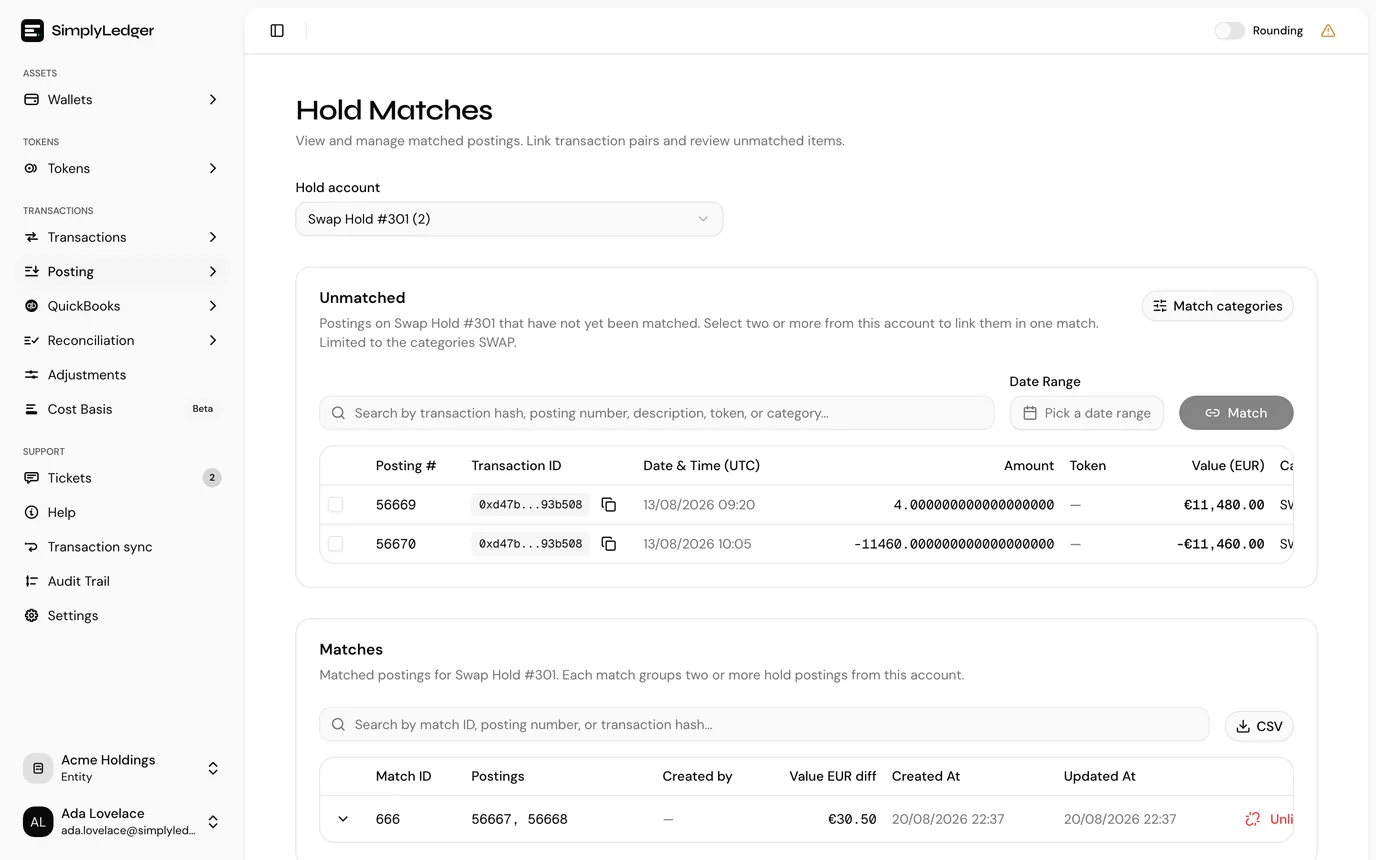
The Unmatched table lists postings on the account that have not been matched, with posting reference, transaction ID, date, amount, token, value, category and description. Search by transaction hash, posting reference, description, token or category, and narrow by date range.
Tick two or more rows and select Match. There is no limit of two: a bridge that fragments into several postings is one match with several members.
The matched rows leave the unmatched table and appear below.
Reading the matches table
Each row is one match: its ID, its member postings, who created it, the value difference in your entity currency, and when it was made. Expanding a row shows the member postings in full, and the table exports to CSV.
The difference is the residual between the legs. It is rarely zero, and that is expected: a bridge charges a fee, and the price of the two tokens moves between the legs. What the figure gives you is a number to sanity-check: a difference far larger than the fee you expect usually means the wrong two postings were matched.
Unlinking
Unlinking removes the match. The postings stay on the ledger. Only the link between them goes, and both return to the unmatched table.
That makes a wrong match cheap to correct, which is worth knowing before you hesitate over an ambiguous pair.
Who can match
Creating and unlinking matches need write access to the entity. Viewers see both tables and the selection checkboxes are absent. See roles and permissions.
Hold and suspense are different
Both group postings, and they answer different questions.
| Purpose | |
|---|---|
| Hold | The two legs of one movement, where you know they belong together and are pairing them up. |
| Suspense | Postings that could not be attributed cleanly at posting time and need resolving later. See suspense matching. |
Each is a separate QuickBooks account type and a separate page, and switching one on does not switch on the other.
Next
Reconciliation is the period-end check on everything posted, matched or otherwise.