
Posted transactions
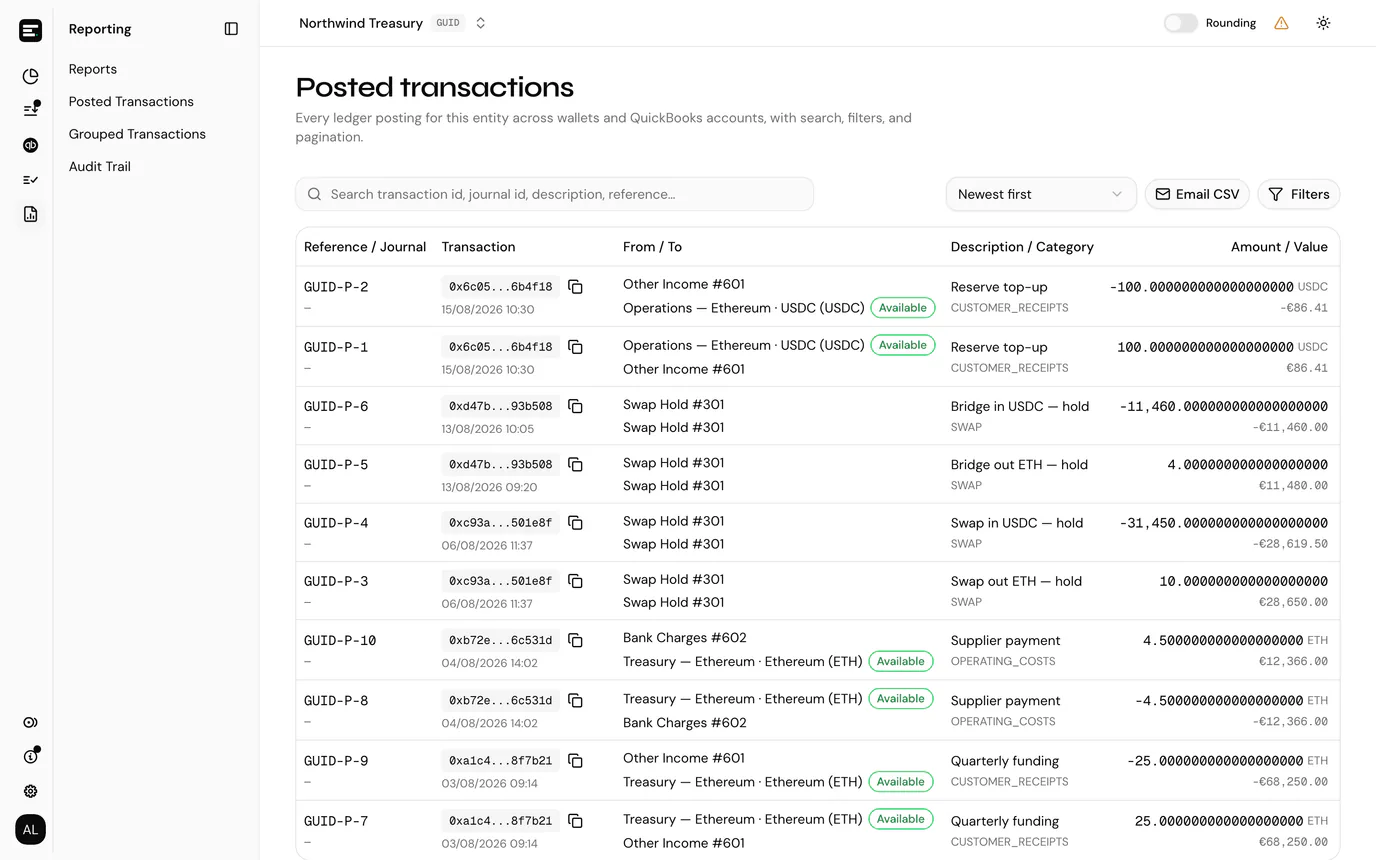
Posted transactions is the entity's ledger: every posting across every account and QuickBooks account, both sides of every double entry, in one searchable list.
Open it by selecting Reporting in the sidebar's icon rail, then Posted Transactions. It was called All postings in earlier versions, and the page is still at /<entityId>/postings.
Where the posting overview is a worklist of what still needs doing, this is the record of what has been done.
Reading the table
Columns stack two related fields to keep the table narrow:
| Column | Notes |
|---|---|
| Reference / Journal | The posting reference (for example SVC-P-12), with the QuickBooks journal entry ID underneath once the posting has synced. A dash means it has not reached QuickBooks yet; Local only means it is deliberately kept out of QuickBooks. |
| Transaction | The transaction ID, with the transaction's date underneath (not the date it was posted). Where the chain supports it, the ID links to the block explorer. |
| From / To | The two sides of the entry, one above the other. A token card on the account side, with its holding type badge, and a QuickBooks account on the contra side. |
| Description / Category | The description, with the category applied underneath. |
| Amount / Value | The token amount with its symbol, and underneath it the value in the entity's currency at the transaction's date. |
| Running balance (token) and (currency) | Only when the list is filtered to a single token card, where a running balance is meaningful. |
| VAT | The VAT code, where one applies. |
| Reconciled | Whether this posting has been included in a finalised reconciliation. |
Amounts follow the entity's Number format from entity settings.
The list is ordered from the Sort by menu above it rather than by clicking column headers: newest or oldest first, amount, value, description, from, to, category, VAT, or reconciled first.
The search box matches transaction ID, journal ID, description and posting reference (for example SVC-P-12) together.
Filters
Filters opens a panel with everything else:
| Filter | Notes |
|---|---|
| Wallet | Or All accounts. |
| Category | Searchable, since a mature entity has many. |
| Token card | Within the chosen account. |
| Transaction dates | A range. |
| From account / To account | Either side of the entry. |
| Reverted | Any, exclude reverted (the default), or reverted only. |
| Reconciled | Any, yes, or no. |
| Linked QuickBooks account | Any, or Deactivated account only. |
Clear filters resets them.
Posting options
One further group picks a focus, and you can have at most one at a time:
- All postings (default). The standard list. Opening balance rows are hidden.
- Include opening balance postings. Adds rows whose transaction IDs start with
OPENING_BALANCE_followed by the token card's public reference. - Adjustments (FOREX) only. Just the forex adjustments.
- Difference postings only. Just the difference postings from suspense matching, matched on their
SUSPENSE_DIFFERENCE:…transaction IDs. Selecting this disables the search box, which the panel tells you.
Editing a posting
The pencil on a row opens Edit posting, which changes the category and description. Both are required, and saving with nothing changed tells you so rather than making a pointless write.
Nothing else about a posted entry can be edited. Amounts, accounts and dates come from the transaction and the posting itself; if one of those is wrong, revert and post again.
Reverting a posting
Revert reverses a posting after a confirmation. The row stays in the list, marked as reverted, rather than disappearing, so the history of what was posted and then undone is preserved.
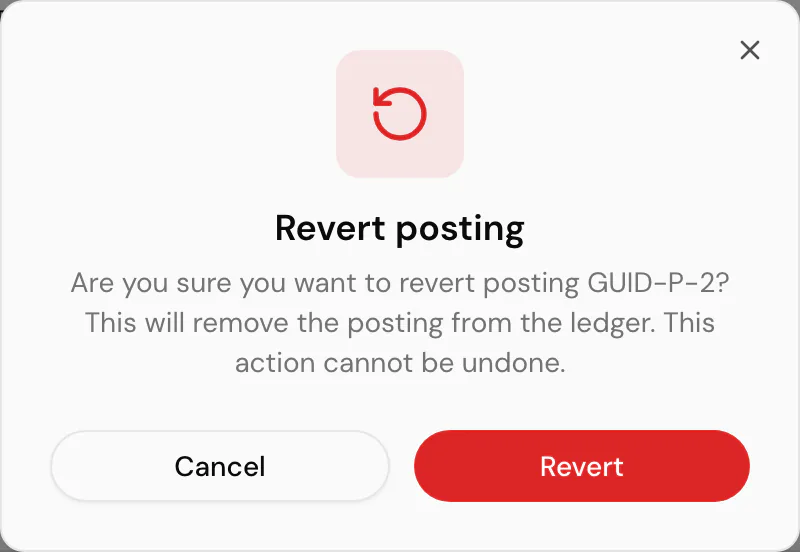
A reverted posting cannot be edited, and cannot be reverted twice; the action says Already reverted instead.
Reverted rows are excluded from the list by default. Set the Reverted filter to Any or Reverted only to see them.
Reverting returns the underlying transaction to the pending queue, ready to be posted again. Its entry under Transactions is unaffected throughout: posting, reverting and re-posting change the ledger, not the history. Both legs of the double entry are reverted together, so it does not matter which side you revert from.
When a reverted transaction does not come back
A revert restores the transaction only where it still has somewhere to go. It stays out of pending when it is already posted under another entry, when it falls before the token card's opening balance date, when its UTC day has not reconciled, when its token was marked as spam, or when the indexer no longer holds the row at all. Those are the five cases to check before assuming a fault.
Deactivated QuickBooks accounts
If a posting's contra account was deactivated in QuickBooks after the posting was made, an Inactive badge appears on the row, and an ! appears beside Posted Transactions in the sidebar, and a dot on the Reporting icon in the rail, so the problem is visible without opening the page.
Such an account cannot receive postings. Selecting the badge offers the linked active accounts you can re-point the posting to; picking one moves it, and it posts to the new account on the next QuickBooks sync.
If nothing is offered, there is no active linked account to move to. Either reactivate the account in QuickBooks or add a link.
Exporting
The ledger is too large to export one page at a time, so Email CSV exports it in full: every posting matching your filters and search, not only the page you are looking at. The dialog names the address on your account; select Send, and the file is generated in the background and emailed to you when it is ready.
The export has one column per field (reference, from, to, journal entry ID, transaction ID, date, token, amount, value and so on) rather than the stacked columns on screen, plus Reverted and Linked Account Deactivated flags. Token amounts are written at full precision, whatever the table is rounding to on screen.
The postings list on a token card or a QuickBooks account is small enough to load in full, so it also has Download CSV, which writes that list straight to a file.
Common problems
"No posted transactions" on an entity you know has some. Filters are active; the count in the card header says so. Clear filters.
Search is greyed out. Difference postings only is selected under Posting options, which filters by transaction ID pattern and cannot be combined with a search.
A posting has no journal ID. It has not synced to QuickBooks yet. See QuickBooks.
Next
Reconciliation for closing a period against these postings.