Exchange transactions
Exchange Transactions is the counterpart to the on-chain transactions list: deposits, withdrawals, transfers and trades on your connected exchange accounts.
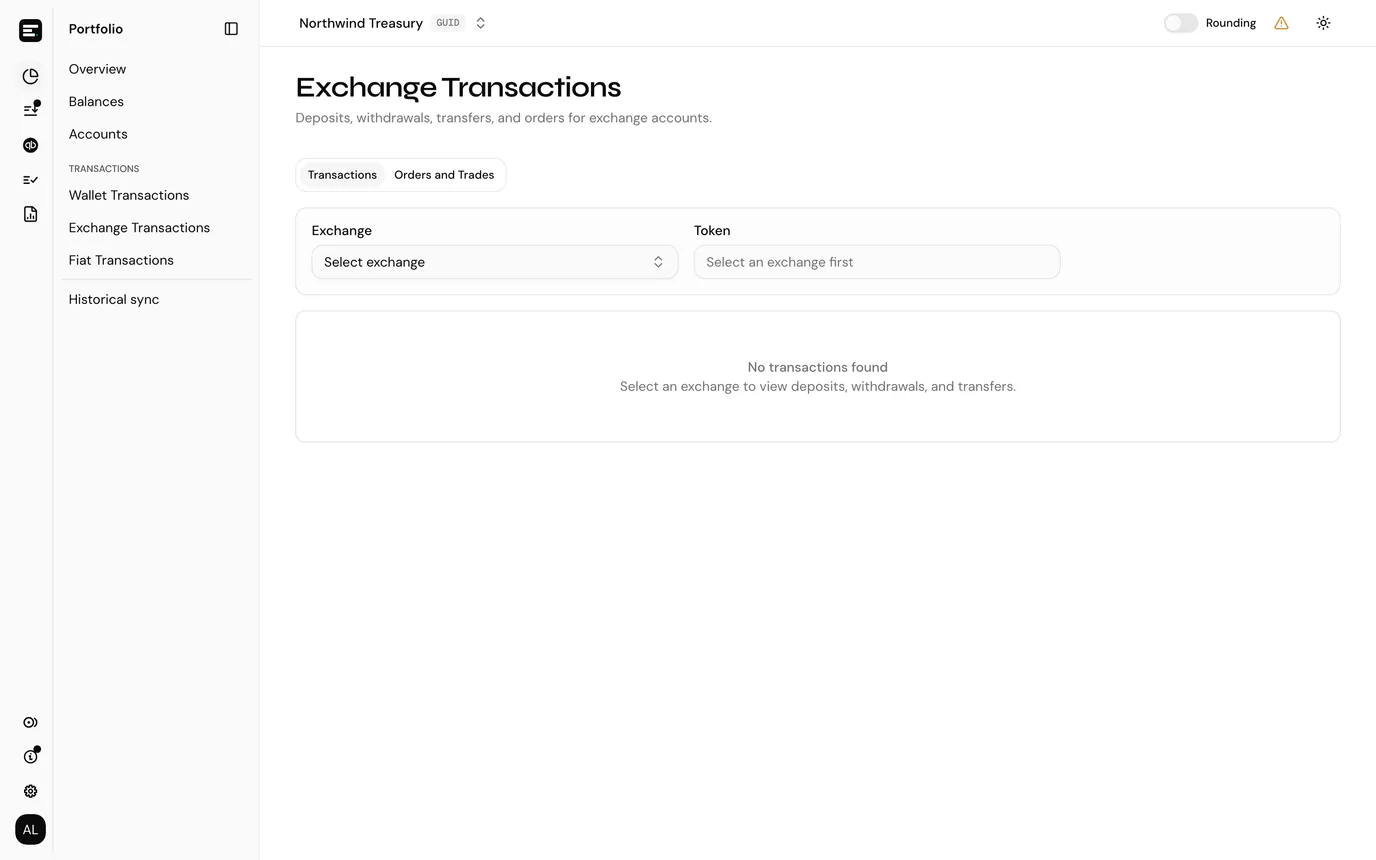
Open it from Portfolio → Transactions → Exchange Transactions in the sidebar. It appears there once the entity has an exchange account. See connect an exchange if it is not there.
The page has two tabs, Transactions and Orders and Trades, and both start by asking which exchange you mean.
Transactions
Choose an Exchange from the picker, and optionally narrow to one token.
| Column | Notes |
|---|---|
| Transaction | The exchange's own identifier, not a chain hash, with the date and time beneath it. |
| Type | Deposit, withdrawal, transfer and so on. |
| Amount / Value | The amount with its token symbol, and beneath it the value in the entity's currency. Hover the value for the price used. |
| Counterparty | The counterparty address, where the exchange reports one. Internal movements often have none. |
Sort by, above the table, orders the rows: newest or oldest first, or by transaction ID, type, token or amount. The column headers do not sort.
The search box matches hash, type, token and address together.
Orders and Trades
The second tab lists orders: an instruction you gave the exchange, which it may have filled in several pieces.
| Column | Notes |
|---|---|
| Order ID | |
| Time | |
| From | What you gave up, with its token. |
| To | What you received. |
| Fee | The exchange's fee, in whichever token it was charged. |
| Trades | How many fills made up this order. |
An order with fills expands to them, each showing Time, Amount with its token, and Value. A market order filled in eleven pieces across two seconds shows as one order with eleven trades, which is what your books need: one economic event, not eleven.
The same card appears on an exchange account's own page, scoped to that account.
Exporting
Both tabs export with Email CSV rather than a download, because an exchange's history runs to far more rows than one page. The export holds every row for the chosen exchange that matches your search (and, on the Transactions tab, your token), not only the page on screen. The dialog names the address on your account; select Send and the file is emailed to you once it has been generated.
Fees are part of the order
The fee is reported against the order rather than as a separate transaction, so do not expect a matching row in the Transactions tab.
How exchange activity is posted
Exchange transactions flow into the same pending queue as on-chain activity, and need a token card per token held on that exchange in the same way.
A trade is a swap: one token out, another in. It uses the hold account mechanism just as an on-chain swap does.
Common problems
"No exchange accounts available. Connect an exchange first." The entity has no exchange account. See connect an exchange.
An exchange is listed but has no transactions. Its credentials are most likely disconnected or rejected. Check the integration page for a Needs reconnect entry.
Older history is missing. Exchanges limit how far back their API returns. Where the exchange offers a CSV export, Nexo shows the pattern; otherwise contact support.
Next
Post a transaction, which is where this activity goes next.