
Choose an entity
Every account, transaction, and posting in SimplyLedger belongs to exactly one entity, and the entity ID appears in the URL of every page (/<entityId>/accounts).
The selection screen
After signing in you see Welcome back and are asked to select an organisation. Each entity you belong to is one row, showing its name, its Entity Code in brackets, and underneath your role and the entity's mode (for example Admin · Accounting). Select a row to open that entity.
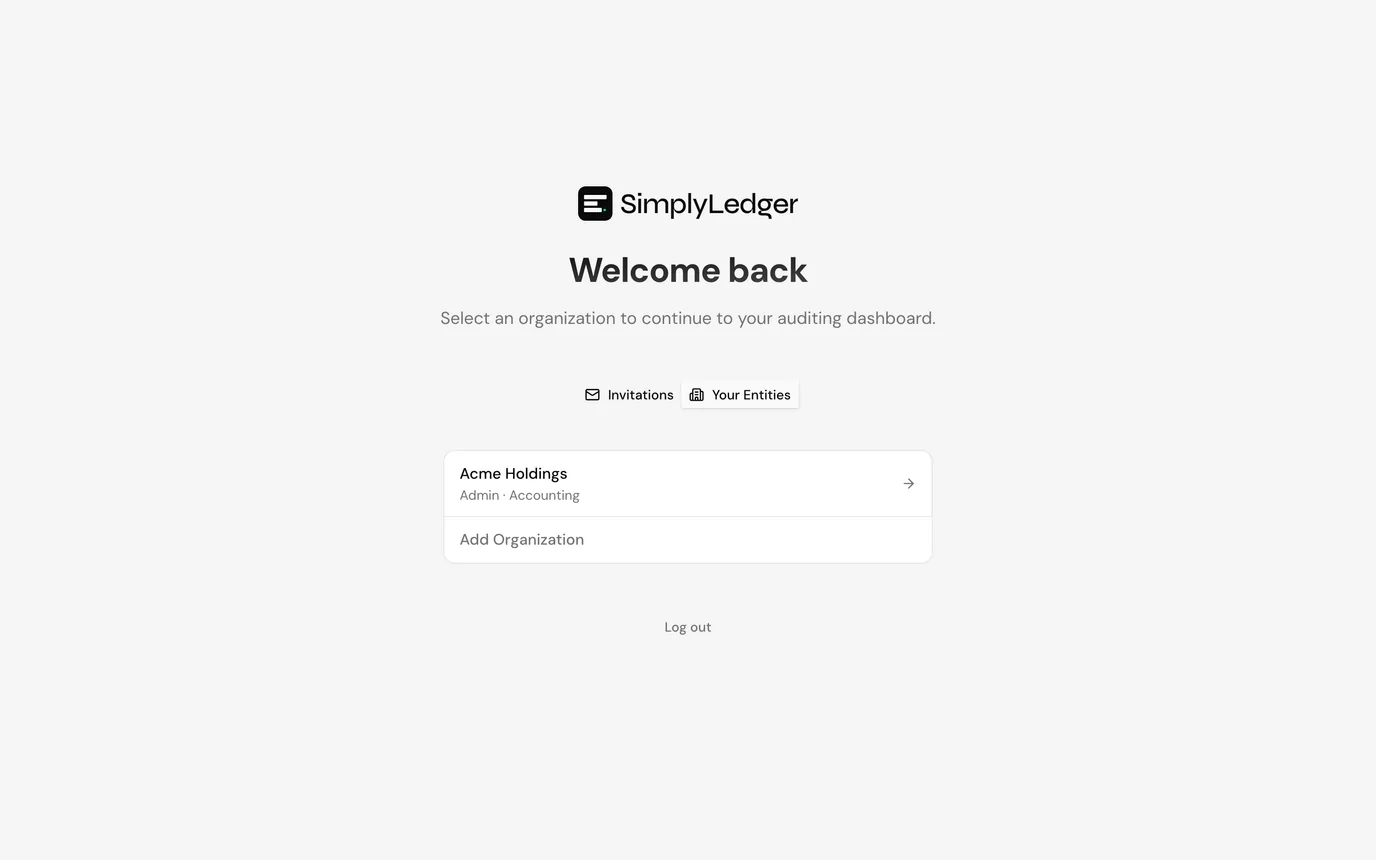
If you belong to exactly one entity and it is approved, this screen is skipped and you go straight into that entity.
Where you land depends on the mode. An accounting entity opens on its dashboard; a portfolio entity opens on the portfolio overview.
Accepting an invitation
When a colleague invites you to their entity, the invitation waits in the user menu: your avatar at the bottom of the sidebar, below the Settings icon in an accounting entity. A red dot on your avatar means one is pending. Select it, then Invitations, which carries a count.
The Invitations dialog lists each entity you have been invited to join and the role you were offered. Select Accept and you are taken into that entity.
If you do not belong to any entity yet, pending invitations are shown instead at the top of the How do you want to start? screen, above the choice to create your own workspace.
An invitation can also arrive as an emailed link. Opening it while signed out carries an invitation token through registration or sign-in, attaching your account to that entity automatically.
Pending entities
An accounting entity may need approval before it can be opened. It stays on your list marked Pending approval, and cannot be selected until it is approved. Portfolio entities are usable straight away.
Creating another entity
Select Add Entity, the last row on the selection screen. The New workspace dialog asks the same portfolio or accounting question as the first time, then Name your entity with a name and an immutable Entity Code. Select Create entity to finish.
The Accounting option is unavailable while one of your accounting entities is still awaiting approval. The dialog tells you so rather than failing on submit.
A new portfolio entity takes you straight to picking the tokens to track. A new accounting entity that needs approval stays on the selection screen as pending.
Switching later
The entity switcher sits at the top left of every page, in the top bar, showing the current entity's name and code. Select it to open Switch Entity, which lists every entity you belong to with a tick beside the one you are in. Pick another to move there without signing out.
Create new entity at the bottom of the same menu returns you to the selection screen, where Add Entity starts the steps above.
Your access
What you can see and do inside an entity depends on the role you hold there. See roles and permissions. The same person can be an admin of one entity and a guest in another.
Next
Your entity is ready. Roles and permissions covers who else can work in it and what they can change.