Tracked tokens
In a portfolio entity you do not create token cards one by one. You choose the tokens you care about once, and every on-chain account and exchange you add gets a token card for each of them, with its balance fetched straight away.
Portfolio entities only
Accounting entities create their token cards by hand, because each one needs a QuickBooks account and an opening balance. Tracked tokens are not offered there.
Where you choose them
There are three places, and they all edit the same list:
| Where | When you see it |
|---|---|
| Choose your tokens page | Straight after creating a portfolio entity. Continue saves your choice and opens the portfolio; Skip for now opens it without saving. |
| 1. Choose your tokens on Portfolio | While the entity has no accounts yet, above the step for adding one. |
| Tracked tokens in settings | At any time, under Settings → Entity → General. Owners and admins only. |
Picking tokens
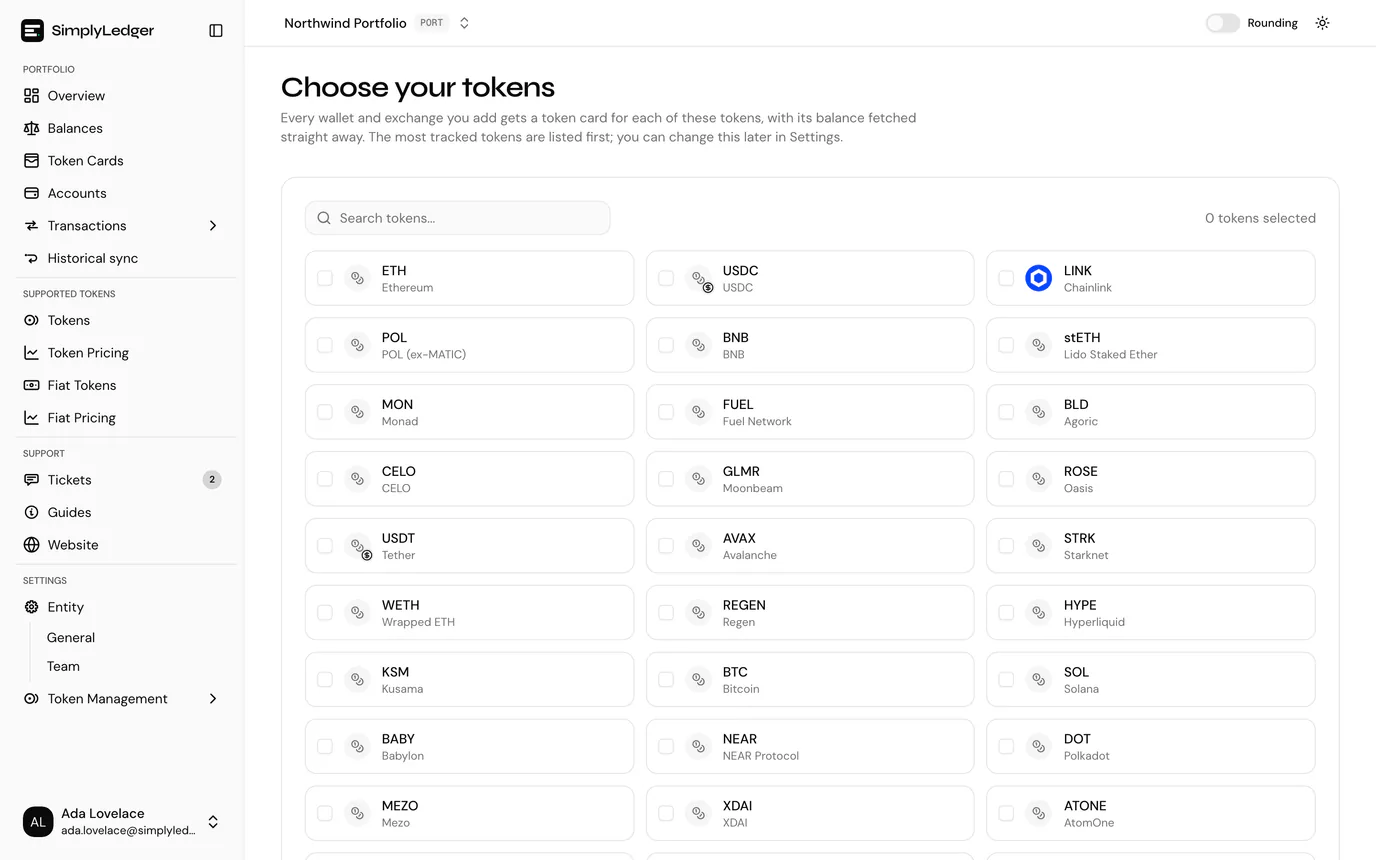
The tokens are laid out as tiles, with the most tracked tokens first, so the usual choices (the chains' own coins and the major stablecoins) are at the top. Tick a tile to select it.
- Search tokens... finds anything further down the list, by symbol or name. Only the first 30 matches are shown at a time, so search rather than scroll for a less common token.
- The tokens you have selected sit as chips above the tiles, with a count (5 tokens selected). Select a chip to remove that token.
- The save button (Continue or Save tokens) stays disabled until the selection differs from what is saved.
Saving confirms with Tokens saved: token cards for new tokens are being added to your accounts.
If a token you want is not in the list at all, SimplyLedger does not carry it yet. See tokens and addresses.
What gets a token card
| Account | Token cards created |
|---|---|
| On-chain account | Its chain's native token (always), every tracked token, and any other token the address scan found a balance for. |
| Exchange | Every tracked token, plus the tokens the exchange reports a balance for. |
The cards are created in the background after the account is saved, and the confirmation reads Token cards for its balances and your tracked tokens are being added. Open the account and its Token cards list fills in over the next few moments, each card showing its Current balance as soon as it has been fetched.
Changing the list later
Edit the list from Settings → Entity → General, on the Tracked tokens card, and select Save tokens.
- Adding a token also adds a card for it to the accounts you already have, not only to new ones.
- Removing a token stops it being added to new accounts, but keeps the token cards that already exist. Archive any you no longer want to see.
You can still create a token card by hand from an account's page for a one-off token you do not want on every account.
Common problems
A tracked token has no card on one account. A token card needs the token to exist on the account's chain, so a token with no address there is skipped. See tokens and addresses.
A new card shows no current balance. The balance is fetched once, in the background, shortly after the card is created. If it is still empty after a few minutes, that fetch did not succeed. The card itself is fine; see balance collection for how its daily balances arrive.
Next
Portfolio is where the tracked balances add up.