QuickBooks accounts
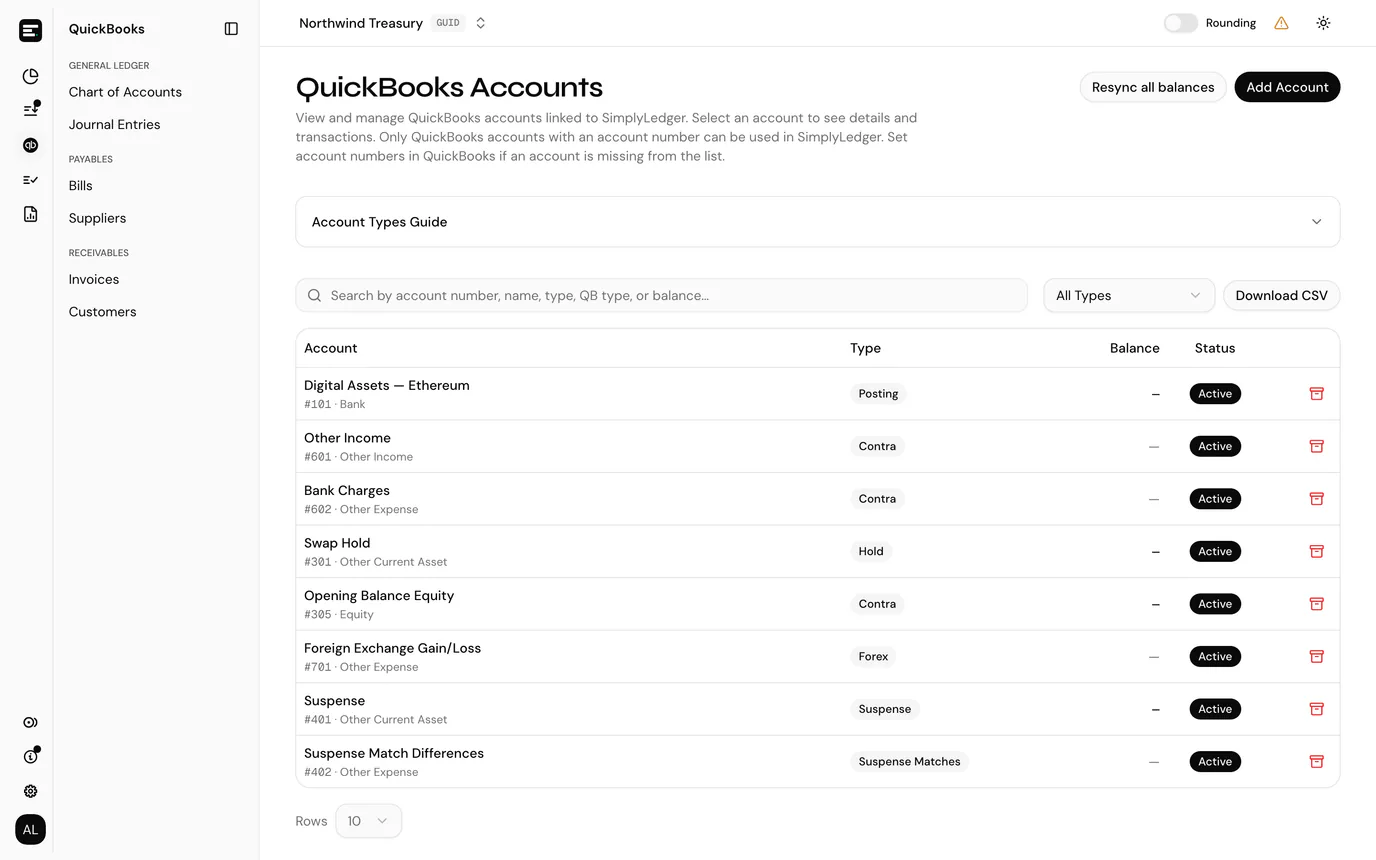
Chart of Accounts is the entity's chart of accounts. Every posting has to name an account here, so almost everything else in the accounting side of SimplyLedger depends on this page being set up correctly.
Open it by selecting QuickBooks in the sidebar's icon rail, then General Ledger → Chart of Accounts.
Not the same as Accounts
Accounts, under Portfolio, is the list of accounts you hold: wallets, exchanges, custodians and bank accounts. The two are unrelated.
Accounts are not created here. They are imported from your QuickBooks Online chart, and each one is given a type that tells SimplyLedger what it is for.
Accounts need a number in QuickBooks
Only QuickBooks accounts that have an account number can be used. If an account is missing from the list to import, set its number in QuickBooks first.
Account types
The Account Types Guide at the top of the page expands to the same summary. The type is chosen at import and decides where the account can be used.
| Type | What it is for |
|---|---|
| Contra | Profit and loss accounts, used as the contra side of a posting, and as the account a token card's opening balance is booked against. Most of your chart. |
| Posting | Linked to token cards, and the account journal entries are booked against when a transaction is posted. |
| Hold | Holds the unmatched leg of swaps and bridges until the other side arrives. See hold matches. |
| Suspense | A temporary account for transactions that still need classifying. It must be a QuickBooks Bank account, because bill and invoice payments are made from it. |
| Suspense Matches | Used by suspense matching to clear the suspense account. |
| Forex | Where adjustments book foreign-exchange differences. Only offered when adjustments are enabled. |
Three of these are one per entity: Suspense, Suspense Matches and Forex can each be held by a single account. When one is already taken, the type is greyed out in the picker with (Already exists) beside it.
Opening Balance is no longer a type
Opening balances used to have a type of their own. They now book against an ordinary account you mark for the job, and accounts previously imported as Opening Balance have been migrated, so nothing needs re-importing. See accounts for opening balances.
This type used to be called PNL
It is the same type doing the same job. Only the label changed, so accounts imported as PNL need no action, and anything you have set up against them still works. You may still see pnl in an exported file or a support conversation.
Import an account
Select Add Account, in the page header. The picker lists your QuickBooks chart with a status against each row:
| Status | Meaning |
|---|---|
| Available | Not yet in SimplyLedger. |
| Already imported | Already tracked here. |
| Archived | Was imported and later archived. It can be imported again, as a different type if you need. |
Tick the accounts you want and set the columns beside each one:
| Column | Notes |
|---|---|
| Type | The SimplyLedger type above. Required. A one-per-entity type already taken is disabled, reading (Already exists), or (Already selected) where another row in this same import has claimed it. |
| Difference account | Hold accounts only. Where a hold match's residual posts. Same account (no posting) keeps residuals on the hold account itself, and is the default. It cannot be changed after import. |
| Opening balance | Ticks the account into the list offered when posting a token card's opening balance. Optional, and changeable later. |
Select Add Accounts to finish. Several can be imported in one pass, each with its own type. The search box matches on name, number, type or account ID, and the status filter narrows the list.
The tracked accounts table
| Column | Notes |
|---|---|
| Account | The name, with its number and QuickBooks' own account type (Bank, Expense, …) beneath it. |
| Type | The SimplyLedger type above, as a badge. An account marked for opening balances carries a second Opening balance badge. |
| Balance | The balance last read from QuickBooks, with Updated and the time it was read beneath it. Income and expense accounts have no standing balance, so a dash is shown. |
| Status | Active, inactive or archived. |
Filter by type narrows to one SimplyLedger type, the search box matches across every column, and Download CSV exports what you are currently looking at, filters and search included.
The search and the type filter are kept in the page's address, so the list can be linked to or reloaded without setting it up again, and opening an account and coming back returns you to the list you had, not to the top of an unfiltered one.
Resyncing balances
Balances are a snapshot, not live. Resync all balances re-reads every active account from QuickBooks and reports how many succeeded and how many failed. A single account can be resynced from its own page instead.
Resync when a balance on screen disagrees with QuickBooks, typically after work has been done directly in QuickBooks.
An account's page
Selecting a row opens the account: its number, name, status and QuickBooks type, its balance with a Resync balance button, its Account Links, a Settings card, and the postings made against it. Back to accounts returns you to the list with the filters you left it under.
Account links
A contra account can be linked to another contra account. Select Link Account and choose the other one; the link shows on both, and the unlink button removes it after a confirmation.
Links are only offered on accounts usable for posting, and are used to keep a pair of related accounts together when posting.
Settings
One card, headed How this account is used across postings and matching, holds everything about the account that is a choice rather than a fact from QuickBooks.
| Setting | Applies to | Notes |
|---|---|---|
| Use in opening balance | Any active account | A switch. On, the account can be picked when posting a token card's opening balance. See accounts for opening balances. |
| Match categories | Hold accounts | Which postings appear when matching against this account: only postings in the categories you pick are offered on hold matches. Picking none means every category is shown, which is the default. Narrow it when a hold account only ever deals with one kind of movement, so the matching screen is not full of postings that could never match. |
| Difference account | Hold accounts | Read-only. Where a non-zero residual on a hold match posts, or Same account (no posting). It is set when the account is imported and cannot be changed afterwards, because changing it would leave earlier matches pointing somewhere else. |
An archived account keeps the card only if it is a hold account, where the two hold settings still describe matches already made against it.
Accounts for opening balances
A token card's opening balance has to post against something, and the picker that offers those accounts is deliberately short: it lists only the accounts marked for opening balances, not your whole chart.
There are three ways to mark one, and they write to the same list:
- At import, with the Opening balance tick in the picker.
- On the account's page, with the Use in opening balance switch.
- From the form itself: the Opening balance account field on the create token card and opening balance forms carries a Manage opening balance accounts link, which opens the same list as tick boxes without leaving what you were doing.
Marked accounts carry an Opening balance badge in the accounts table, so the list can be read back at a glance.
Where nothing has been marked yet, the field says so (No opening balance accounts are marked yet) rather than showing an empty dropdown, and the form cannot be submitted until one is.
Archiving
Archive on an account's page takes it out of use. It stops being offered when posting and drops out of the default list, but postings already made against it are untouched.
An archived account still shows in the import picker under Archived, and can be brought back, optionally as a different type.
Deactivated accounts warn in the sidebar
If postings exist against an account that has since been deactivated, an ! appears beside Reporting → Posted Transactions in the sidebar, and a dot on the Reporting icon in the rail. See posted transactions.
Common problems
An account is missing from the import picker. It has no account number in QuickBooks, or it is already imported. Switch the status filter to Already imported to check.
The type I want is greyed out. It is one of the one-per-entity types and is already taken. Archive the existing one first if you genuinely mean to replace it.
A balance is blank. Income and expense accounts do not carry a standing balance, so a dash is shown. That is expected.
The opening balance account picker is empty. No account has been marked for opening balances yet. Use Manage opening balance accounts on the form, or the switch on an account's page.
Next
QuickBooks for the connection itself, or categories, which map onto the contra accounts set up here.