
Managing your team
Everyone who works in an entity is invited to it by email and holds a role there. Both are managed on the Team page of entity settings, at /<entityId>/settings/team. Select Settings in the sidebar's icon rail, then Entity → Team.
Admins and owners only
Inviting people and changing roles is limited to admins and owners. Users, viewers and guests cannot open entity settings at all.
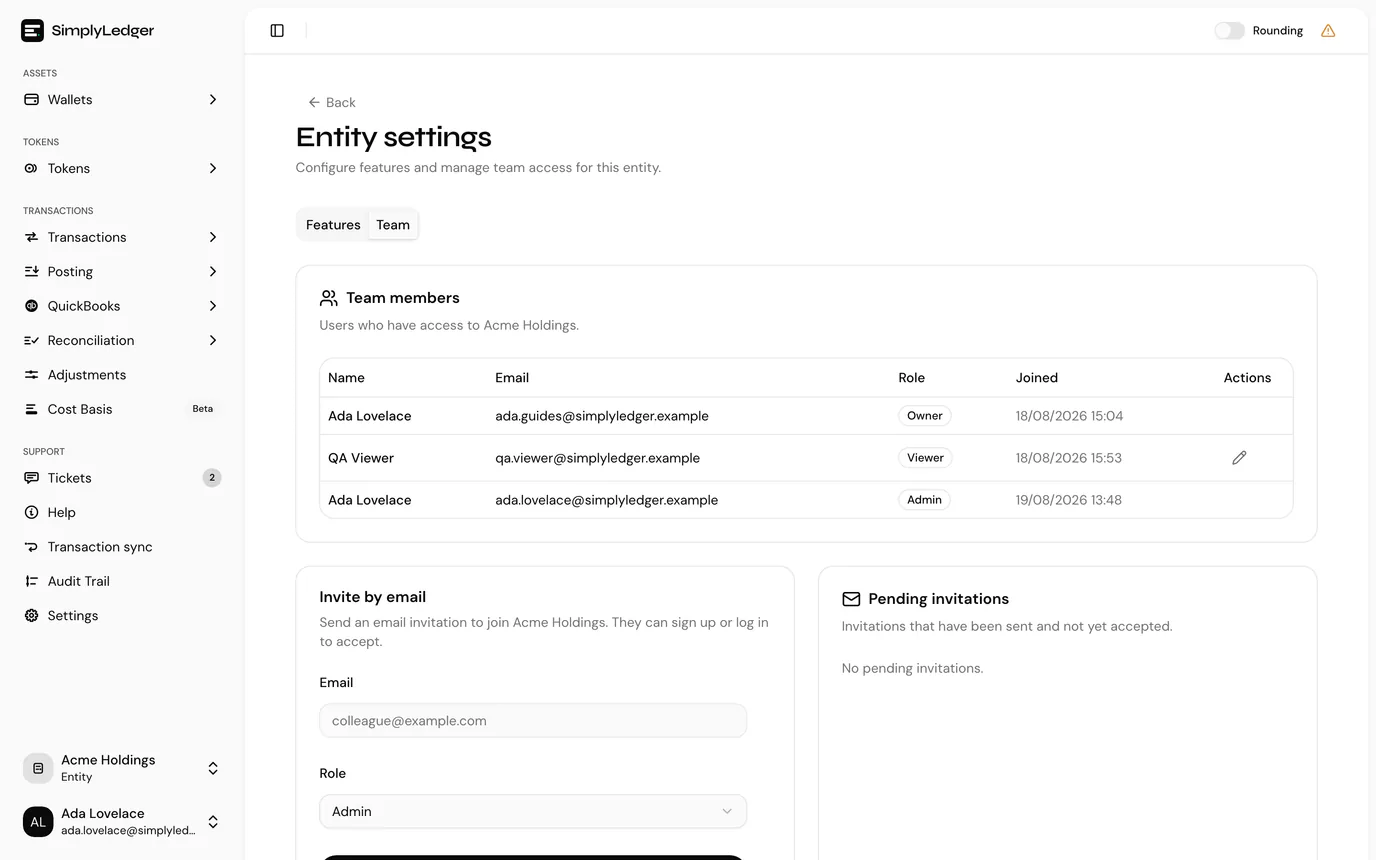
Team members
The Team members card lists everyone with access: name, email, role, and the date they joined.
The pencil at the end of a row opens Update user role, where you pick a new role from Admin, User, Viewer or Guest, and select Update role.
Two rows have no pencil, by design:
- Your own. You cannot change your own role, which stops an admin locking themselves out of the entity.
- The owner's. The owner role is fixed at creation and cannot be transferred or downgraded.
A role change takes effect immediately. Someone who is demoted while signed in loses the affected sections on their next page load.
Invite by email
The Invite by email card takes an address and a role, and sends an invitation.
| Field | Notes |
|---|---|
| The colleague's email address. They do not need a SimplyLedger account yet. | |
| Role | Admin, User, Viewer or Guest. Owner is not offered, since an entity has exactly one and it is set at creation. Defaults to Admin, so change it before sending if that is not what you meant. |
Select Send invitation. The recipient gets an emailed link. Opening it while signed out carries the invitation through registration or sign-in, so a new colleague can go from the email to inside your entity without anything else from you. Someone who already has an account sees it under Invitations in the user menu at the bottom of the sidebar, where they select Accept. See accepting an invitation.
Pending invitations
Sent invitations that have not been accepted appear in Pending invitations, with the address, the role offered, a status, and the date sent.
The ✕ at the end of a row cancels one, after a confirmation. The emailed link stops working. To change the role you offered someone, cancel the invitation and send a new one; the role is fixed when the invitation is created.
Once an invitation is accepted the person moves to Team members and the row disappears from here.
Common problems
"Failed to send invitation." Most often the address is already a member of this entity, or already has an invitation pending. Check both cards before re-sending.
They accepted but cannot see anything. Check the role they were given. A guest is restricted to a handful of sections, listed under roles and permissions.
The invitation email never arrived. Ask them to check spam. If it is genuinely lost, cancel the pending invitation and send it again.
Next
Roles and permissions for what each role can actually do, or the audit trail to see what your team has been changing.