
Account security
Your password and two-factor authentication belong to your SimplyLedger account, not to an entity. Changing either affects every entity you belong to.
Both are managed from the user menu at the bottom of the sidebar. Select your avatar to open it: in an accounting entity it sits at the foot of the icon rail, below Settings; in a portfolio entity, and on a phone, it shows your name and email.
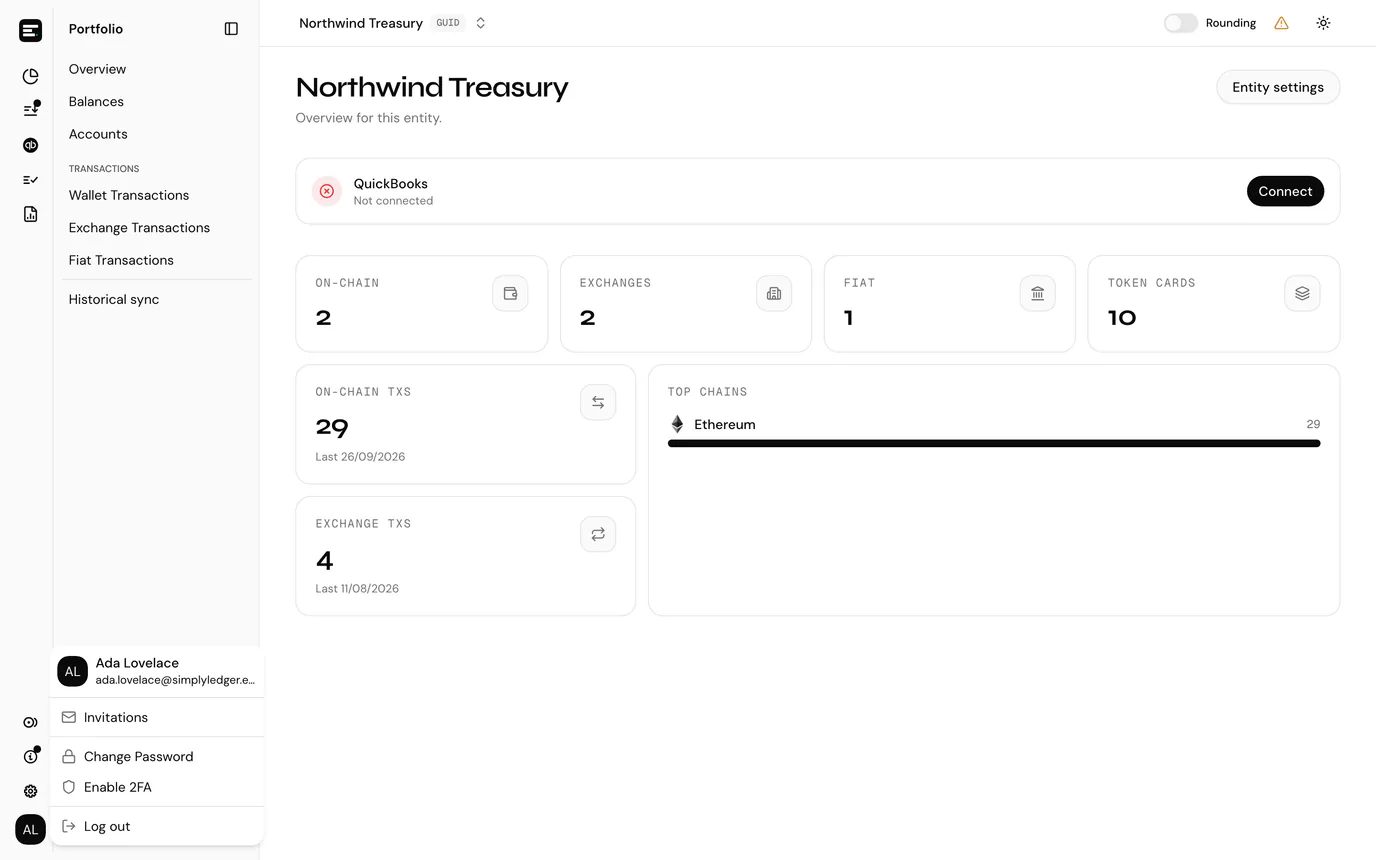
Change your password
Select Change Password. The dialog asks for three things:
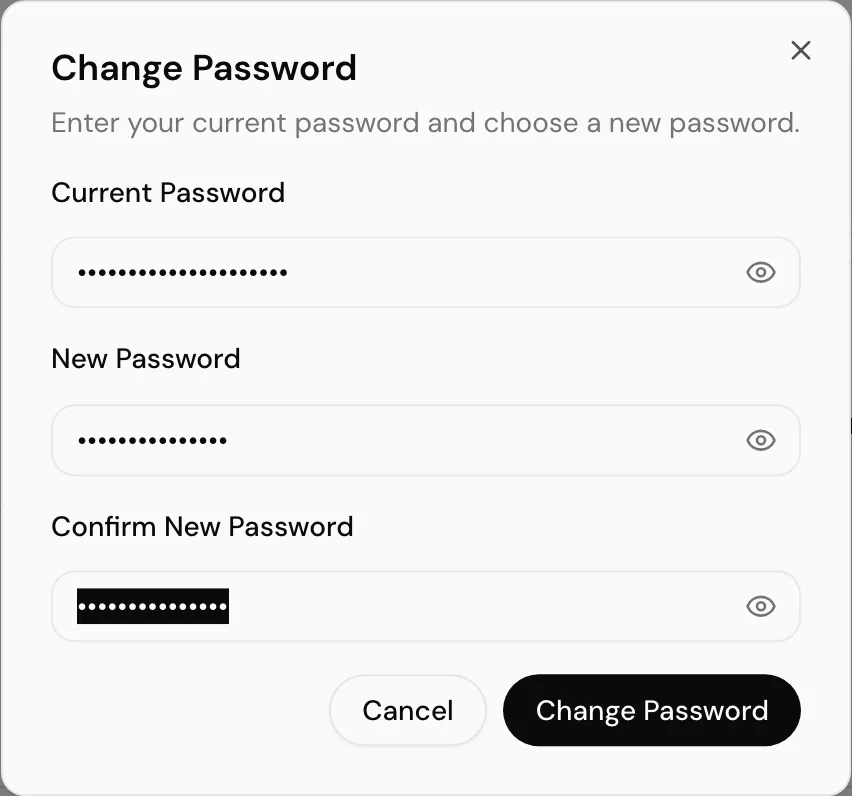
| Field | Notes |
|---|---|
| Current Password | The password you sign in with today. |
| New Password | At least 8 characters. |
| Confirm New Password | Must match the new password exactly. |
Each field has an eye icon to reveal what you typed. Select Change Password to save.
You stay signed in on this device. If you were changing your password because you think somebody else has it, sign out afterwards so the old session on their side is not left running.
Enable two-factor authentication
With two-factor authentication on, signing in needs your password and a six-digit code from an authenticator app. Select Enable 2FA from the user menu to set it up. It runs in three steps.
1. Scan the QR code
The dialog shows a QR code. Open your authenticator app, Google Authenticator, Authy and 1Password all work, and scan the code. If you cannot scan, the key underneath the QR code can be typed in by hand; the copy icon puts it on your clipboard.
Select Next.
2. Verify
Enter the six-digit code your app now shows for SimplyLedger and select Verify & Enable. This proves the app was set up correctly before anything is locked to it.
The code rotates every thirty seconds. If it is rejected, wait for the next one rather than retyping the same digits, and check your phone's clock is set automatically, because a drifting clock generates codes that will never match.
3. Save your backup codes
The last step shows a set of backup codes. Each one works once, in place of an authenticator code, and they are the only way back into your account if you lose your phone.
They are not shown again. Copy them with Copy all codes and put them somewhere safe and separate from your phone, such as a password manager. Select Done to finish.
There is no self-service recovery
If you lose both your authenticator app and your backup codes, you cannot sign in and cannot reset this yourself. You will need to contact support, who have to verify who you are before they can remove it.
From now on, signing in asks for a code after your password.
Disable two-factor authentication
When 2FA is on, the user menu shows Disable 2FA in place of Enable. It asks for your password to confirm, then removes it. Sign-in goes back to password only, and your old backup codes stop working.
Enabling it again later issues a fresh secret and a fresh set of backup codes; the old ones are not restored.
If you forgot your password
You do not need to be signed in for this. Select Forgot password? on the sign-in screen, enter your email address, and follow the emailed link to a page where you set a new password. Enter it twice, at least 8 characters, and you are returned to sign-in.
The link is single-use and expires. If it has, start again from Forgot password?.
See reset your password for the full walkthrough.
Resetting your password does not turn off two-factor authentication. You will still be asked for a code afterwards.
Next
Sign in covers what these settings change about signing in.