
Portfolio or accounting
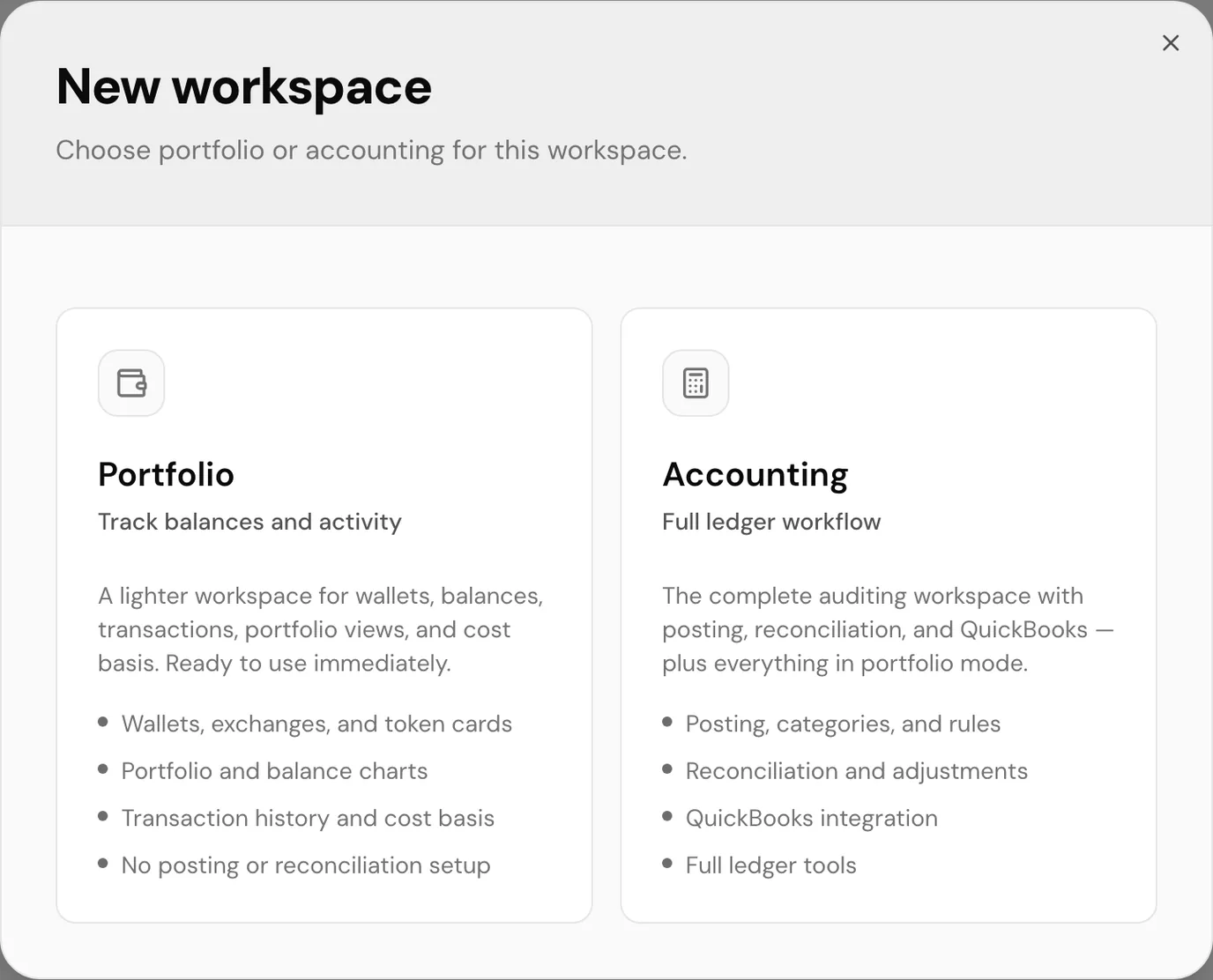
The first time you sign in, SimplyLedger asks How do you want to start? and offers two kinds of workspace. This choice sets the entity's mode, and it shapes which parts of the product you see.
The same two options appear later in the New workspace dialog whenever you create another entity.
Choose deliberately
Accounting includes everything portfolio does, but you cannot switch a portfolio entity to accounting yourself; you have to ask support, using the Upgrade button in entity settings. See support tickets. If you already know you need to post and reconcile, pick Accounting now.
Portfolio
Track balances and activity. A lighter workspace for wallets, balances, transactions, and portfolio views. Ready to use immediately.
Pick this if you want to see what you hold and how it has moved, without keeping a ledger. It covers:
- Wallets, exchanges, and token cards
- Portfolio and balance charts
- Transaction history
- No posting or reconciliation setup
Choosing Portfolio opens Name your entity, headed Portfolio entity and describing what a portfolio entity tracks. The name is prefilled after you (Ada's Portfolio); you still choose an Entity Code (see below), then select Create entity.
The new entity opens on Choose your tokens: pick the tokens every account you add should be tracked for and select Continue, or Skip for now and do it later. See tracked tokens. Working in a portfolio entity covers what to do from there.
Accounting
Full ledger workflow. The complete auditing workspace with posting, reconciliation, and QuickBooks, plus everything in portfolio mode.
Pick this if the numbers have to end up in a set of books. It adds:
- Posting, categories, and rules
- Reconciliation and adjustments
- QuickBooks integration
- Cost basis and full ledger tools
Choosing Accounting opens the same Name your entity step, headed Accounting entity. Use the name the books are kept under, such as Acme Holdings, pick an Entity Code, and select Create entity.
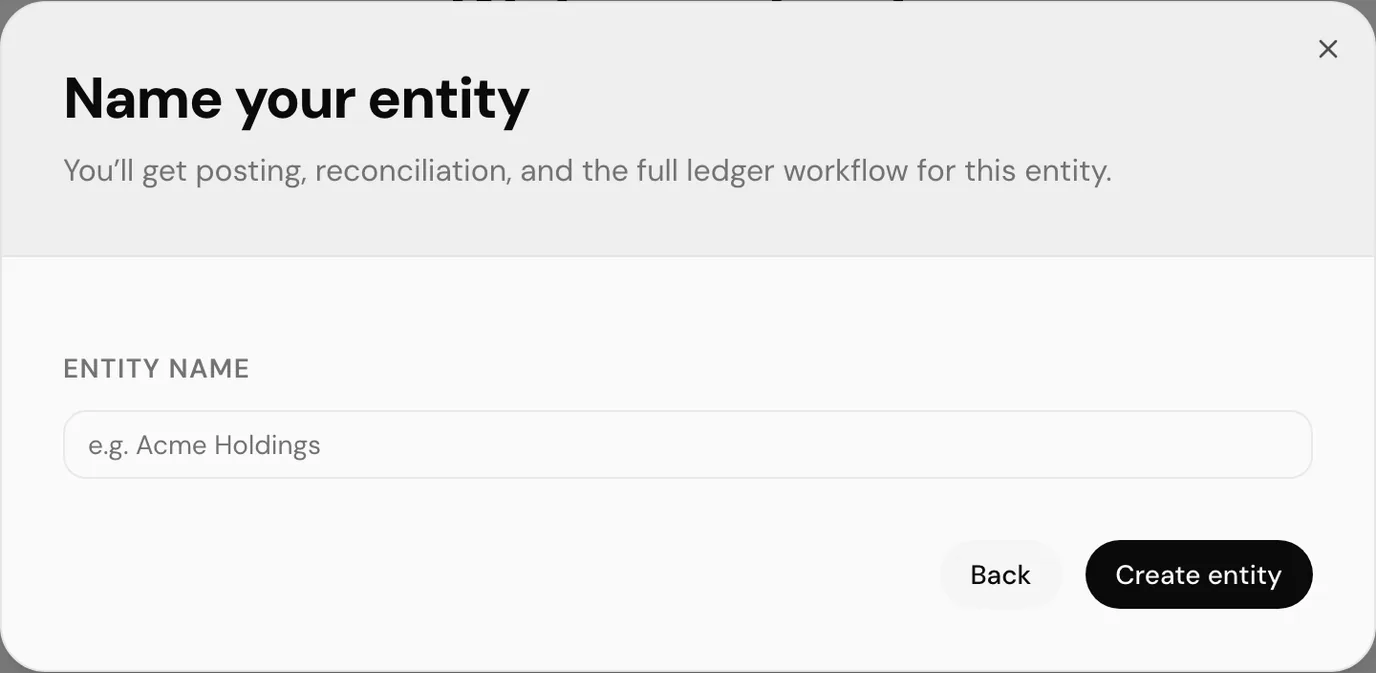
An accounting entity may need to be approved before you can open it. Until then it shows on your entity list as pending, and while one accounting entity is awaiting approval the Accounting option is unavailable for creating another.
Entity Code
Both modes ask for an Entity Code: 2–6 uppercase letters (for example SVC or ACME). It is the immutable prefix on every public ID in that entity: accounts (SVC-W-1), token cards (SVC-TC-2), postings (SVC-P-3) and reconciliations (SVC-R-4). Those are what the # columns and detail URLs show; they are not the internal database numbers.
The code cannot be changed later. Pick something short that will still make sense when you read a posting reference months from now. See public reference in the glossary.
What each mode gives you
Both modes share the whole tracking side of the product:
| Section | Portfolio | Accounting |
|---|---|---|
| Portfolio and balances | Yes | Yes |
| Accounts: on-chain, exchange, custodian and fiat | Yes | Yes |
| Token cards | Yes | Yes |
| Wallet, exchange, custodian and fiat transactions | Yes | Yes |
| Tracked tokens (token cards created for you) | Yes | No |
These are the accounting-only sections. In a portfolio entity they are not in the sidebar, and opening one directly returns you to the entity's home page, which for a portfolio entity is Portfolio:
| Section | Portfolio | Accounting |
|---|---|---|
| Posting: overview, pending, discarded, categories, rules | No | Yes |
| Posted and grouped transactions | No | Yes |
| Reconciliation and reconciliations | No | Yes |
| Adjustments | No | Yes |
| QuickBooks accounts, journal entries, bills, invoices | No | Yes |
| Customers and suppliers | No | Yes |
| Cost basis | No | Yes |
| Audit trail | No | Yes |
Finding your way around
How the sidebar is laid out depends on the mode.
Accounting entities use two columns on a desktop screen. A narrow icon rail on the left holds the areas of the product: Portfolio, Accounting, QuickBooks, Reconcile and Reporting at the top, and Supported Tokens, Support and Settings at the bottom, above your avatar. Hover an icon for its name. A dot on an icon means something in that area needs attention, such as postings waiting to be matched or unread ticket replies. Beside the rail, a panel lists the pages of the selected area, grouped under small headings such as POSTING or GENERAL LEDGER.
Selecting an icon only changes what the panel shows; it does not leave the page you are on, so you can look through an area before choosing a page from it. The panel always follows the page you are on, so a link from elsewhere opens with the right area selected. The toggle at the top of the panel collapses it down to the rail.
The guides write a route through the sidebar as Area → Section → Page, for example Accounting → Posting → Pending or Reporting → Posted Transactions.
| Area | Pages |
|---|---|
| Portfolio | Overview, Balances, Accounts, Transactions, Historical sync |
| Accounting | Posting (Overview, Pending, Discarded), Matching (Hold Matches, Suspense Matches), Setup (Rules, Categories) |
| QuickBooks | General Ledger (Chart of Accounts, Journal Entries), Payables (Bills, Suppliers), Receivables (Invoices, Customers) |
| Reconcile | Reconciliations (Balance Sheet, Create Reconciliation, All Reconciliations), Adjustments, Cost Basis |
| Reporting | Reports, Posted Transactions, Grouped Transactions, Audit Trail |
| Supported Tokens | Tokens, Token Pricing, Fiat Tokens, Fiat Pricing |
| Support | Tickets, Guides, Website |
| Settings | Entity (General, Team, QuickBooks, Reconciliation), Token Management (Spam Tokens, Token Requests, Token Address Requests) |
Some pages only appear once a feature is switched on or the entity holds the right kind of account; see I cannot see a section in the sidebar.
Portfolio entities, guests and any entity on a phone keep a single list instead: the same areas stacked as headed groups, with the pages beneath each. The page names are the same, so the routes in the guides still apply; read the area as the group heading. See what the sidebar holds for a portfolio entity's list.
The top bar
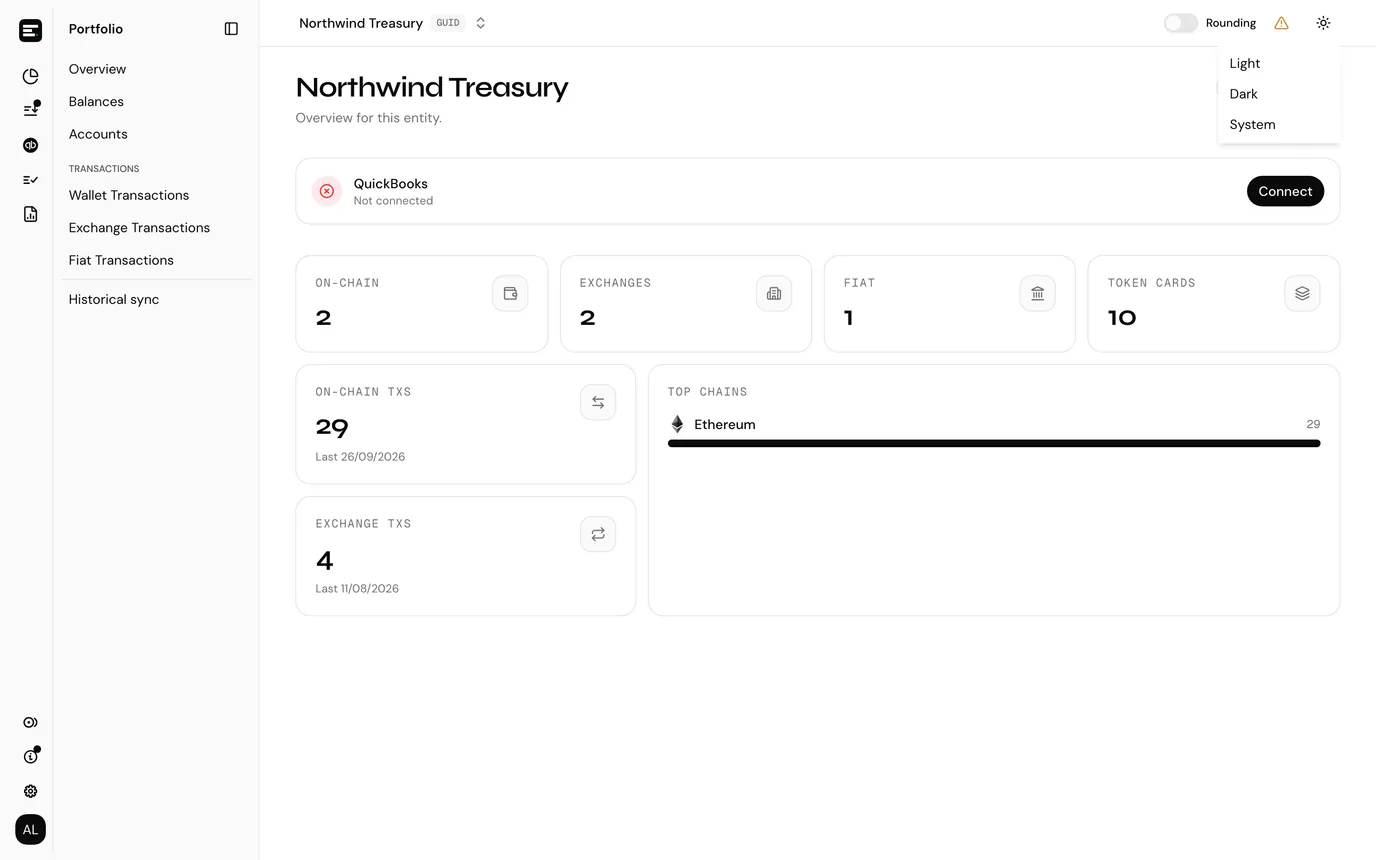
Across the top of every page, and pinned there while you scroll, sit the entity switcher (see switching entities), the Rounding switch, which rounds token amounts to two decimal places for reading, the QuickBooks connection status in an accounting entity with QuickBooks on, and the theme menu. The theme menu, the sun or moon icon, offers Light, Dark and System, which follows your device and is the default. The choice is kept in your browser, so it applies to every entity you open there.
Which should you pick?
Choose Portfolio if you are tracking treasury holdings, want balance and activity visibility, and your accounting happens elsewhere. It is available as soon as you create it.
Choose Accounting if you need journal entries, period-end reconciliation, cost basis, or a QuickBooks sync. It is the full product, and portfolio's features come with it.
Next
If you picked Portfolio, working in a portfolio entity is the path through it.
Either way, choose an entity covers the selection screen, invitations, and switching between entities, and roles and permissions explains what each member can do.