
Historical sync
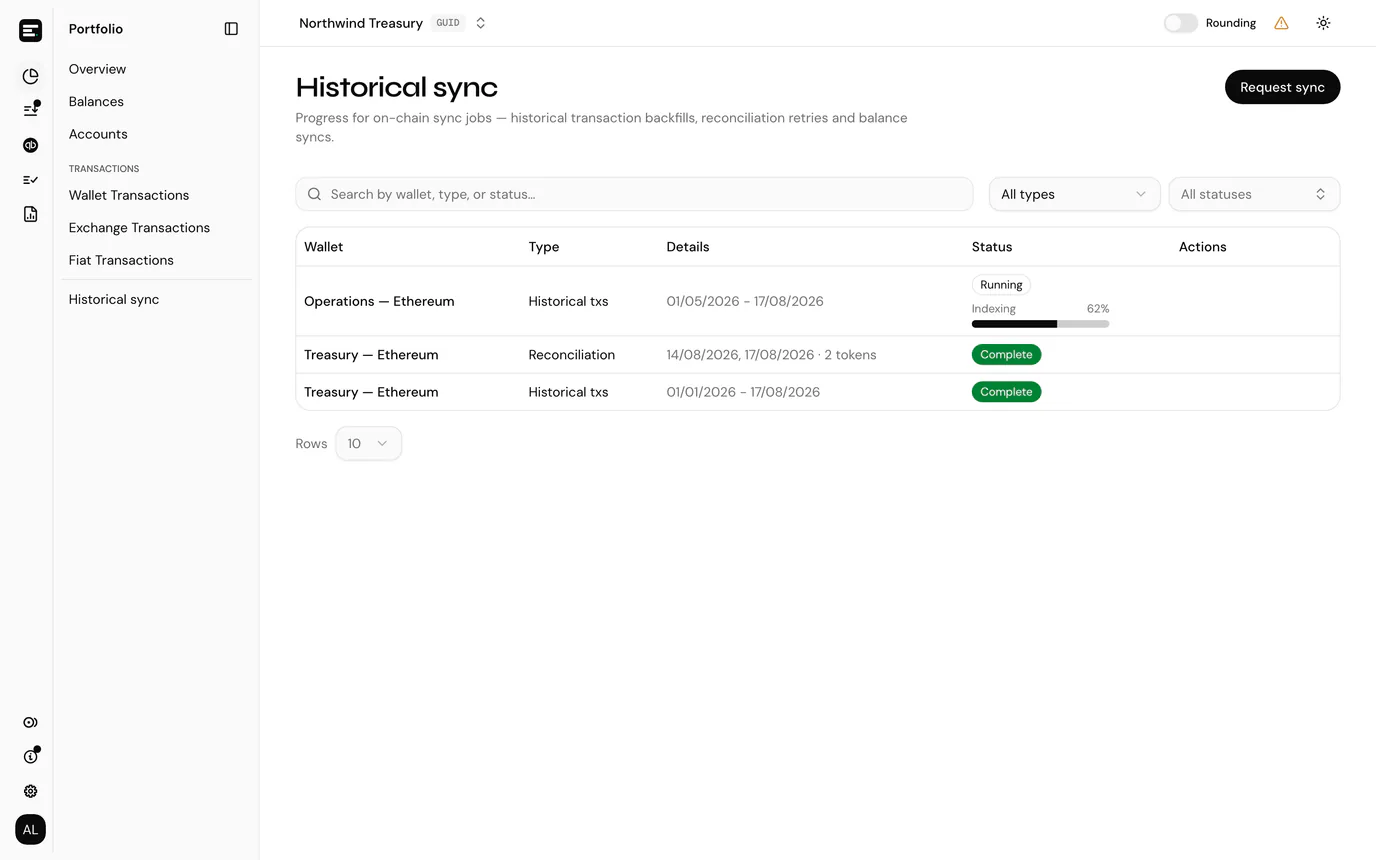
Once an on-chain account is added, SimplyLedger indexes its activity in the background. The Historical sync page shows the progress of those jobs, and of end-of-day balance collection, and is where you queue either yourself.
Select Portfolio in the sidebar's icon rail, then Historical sync, or use View queue status from the Actions menu on the posting overview. The page used to be called Transaction sync, under Support.
On-chain only
This page tracks on-chain jobs: historical backfills, reconciliation retries and balance syncs. Exchange syncing is not shown here, custodian syncing runs through the provider's daily jobs rather than this queue, and a fiat account has nothing to index at all: its transactions arrive by statement import.
Reading the queue
Each row is one indexing job, showing the account, the job type, what it covers, and its status.
Three job types run here:
| Type | Raised by |
|---|---|
| Historical txs | Request sync → Historical indexing, or Request historical txs on an account's own page, to backfill past activity. Its details are the date range. |
| Reconciliation | Request sync → Reconciliation, or Request Attention on the posting overview, to re-index days that would not reconcile. Its details are how many tokens and days it covers. |
| Balances | Request sync → Balances, to collect end-of-day balances over a date range. Its details are the date range. One queued for every account reads All accounts in the account column. |
Every job passes through four statuses:
| Status | |
|---|---|
| Queued | Accepted, not started. |
| Running | Working now. Historical and balance jobs also show a percentage as they progress, labelled Indexing or Collecting. |
| Complete | Finished. |
| Failed | Stopped with an error, which is shown on the row. |
The percentage and its bar appear only while a job is actually Running. A queued job has not started, and a finished one has no progress left to report, so neither shows a bar rather than showing one stuck at 0 or 100.
The type filter takes one value. The status filter takes several: tick as many as you want and the list shows jobs in any of them, which is how you watch Queued and Running together and leave the finished ones out. With nothing ticked it reads All statuses and filters nothing.
Those filters and a search across account, type and status narrow the list, and the page refreshes itself while any job is unfinished, so a running job's progress updates without reloading.
An empty queue is normal. It means no backfill is in progress, not that nothing has synced; completed jobs age out of the view.
Request a sync
Request sync in the page header opens the Request historical sync dialog, which queues any of the three job types for on-chain accounts, without going to the account's page first. It needs write access, so viewers do not see the button. Guests cannot open historical sync at all.
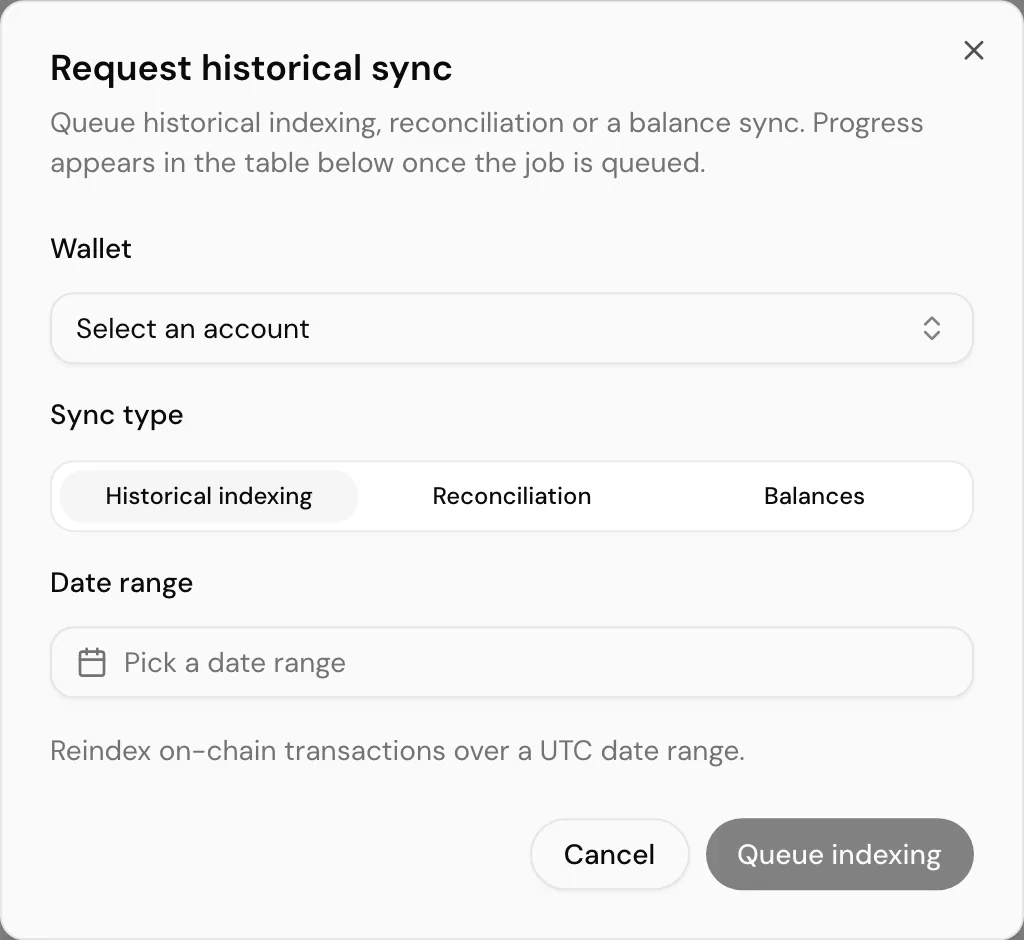
Pick the Sync type (Historical indexing, Reconciliation or Balances) and the Wallet. Only on-chain accounts are listed; exchange, custodian and fiat accounts are not.
Historical indexing
Pick a date range, up to today, and select Queue indexing. The range is read in UTC. This is the same job as Request historical txs on an account's own page, and appears in the queue as Historical txs.
Reconciliation
What this tab offers depends on the account you picked:
- It has unreconciled days. They are listed as Unreconciled on-chain days, and Queue reconciliation retries exactly those days and tokens, nothing wider. There is nothing to choose.
- It has none. A Date range picker appears instead, so you can re-check a specific window. Select Pick a date range and choose a start and an end on the two-month calendar. Days after today are disabled.
The range is read in UTC and is queued as one job per day, so it is capped at 90 days. A wider range is refused in the dialog, telling you how many days you selected, rather than queuing three months of work by accident. Split anything longer into separate requests.
Balances
Collects each day's closing balance for every token card on the chosen accounts, the same figures balance collection records daily, so a gap in Daily balances can be filled for many cards at once.
- Wallets takes several accounts. Leave it on All accounts to queue one job covering every on-chain account in the entity.
- Date range must end before today and can span at most 12 months. A longer range is refused in the dialog with Date range cannot exceed 12 months. The range is read in UTC.
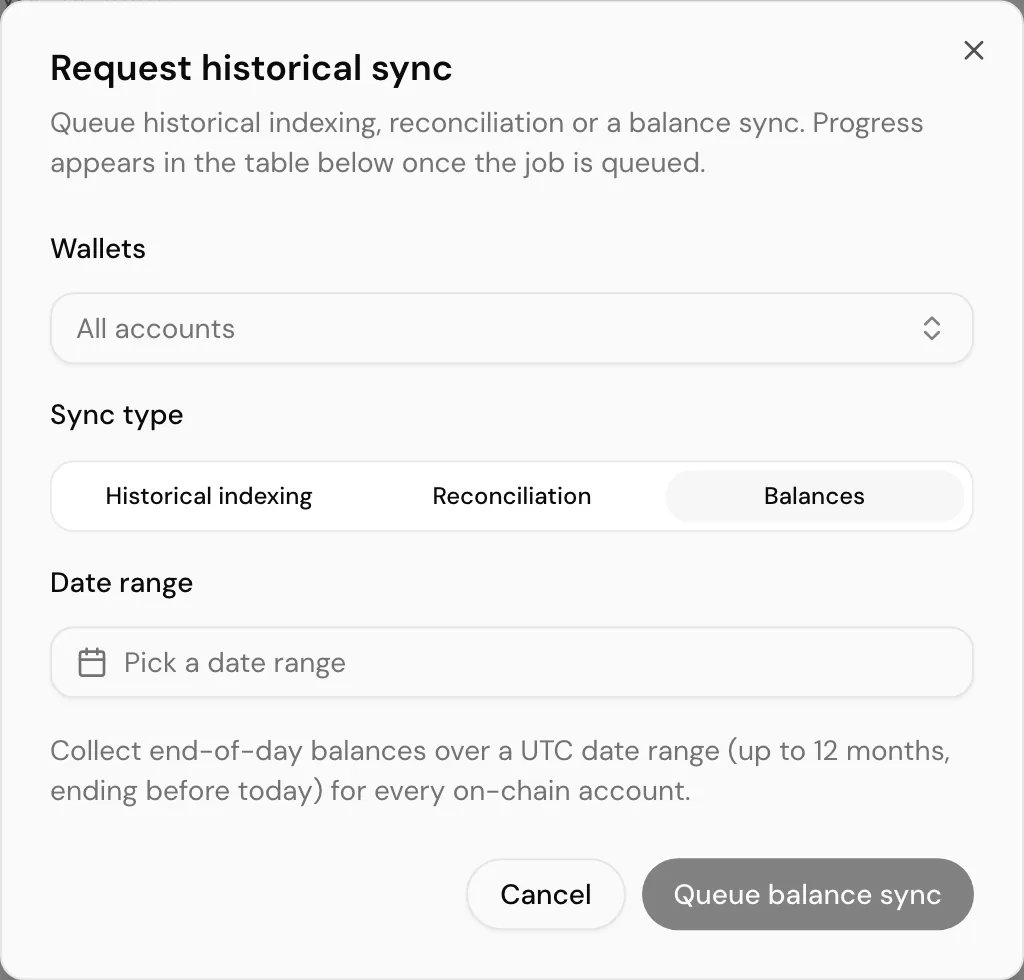
Select Queue balance sync. The dialog closes and the job, one per account picked, is followed in the table instead.
A balance sync is refused while another is queued or running that overlaps it: one for the same account, or one covering all accounts.
Following progress
Historical and reconciliation progress appears in the dialog as a percentage while the job is Running, and you can close the dialog without cancelling it. A finished job raises a toast either way, and a completed reconciliation job refreshes the pending queue so withheld rows reappear.
One job at a time, per account and per type
While a job is queued or running for an account, the dialog will not queue a second of the same type for it. It says which job is in the way, over what dates, and what state it is in, and the form is disabled until that job finishes.
An indexing job and a reconciliation job can run for the same account at once; it is two of a kind that are refused. Queueing the same window twice is the common way of ending up waiting on duplicated work, which is what this stops.
New accounts index from the point they were added, so a historical request is how earlier activity arrives. Backfills over a long history take time: the job stays Running, with a percentage, until every block in range has been indexed.
When a job fails
A failed historical or failed balance job has a Request attention action, which raises a support ticket prefilled with the account (or All accounts), address, date range and request ID. Use it when a job has failed, has been running far longer than expected, or has completed without the transactions you expected.
The same words, twice
Request attention here opens a support ticket. Request Attention on the posting overview queues a re-index instead, without involving support. Check which page you are on.
A failed reconciliation job has no action here. Re-request it from the posting overview, which still lists the days that did not reconcile.
Next
Review transactions once the sync has caught up.