
Posting rules
A posting rule fills in the repetitive part of posting. It matches on a transaction type and supplies the VAT code, category and contra account, so a shape of transaction you have already categorised once does not need categorising again.
Rules never post anything. Apply Rules fills the fields on pending rows; staging and posting stay a deliberate action.
Select Accounting in the sidebar's icon rail, then Setup → Rules. The page is titled Posting Rules.
Defaults and wallet & token rules
The list is split into two tabs, with a count on each.
| Tab | Scope | Matches |
|---|---|---|
| Defaults | Entity-wide | Any wallet, any token, on transaction type alone. |
| Wallet & token | One wallet and token | That wallet and token, narrowed to one holding type. Takes priority over defaults. |
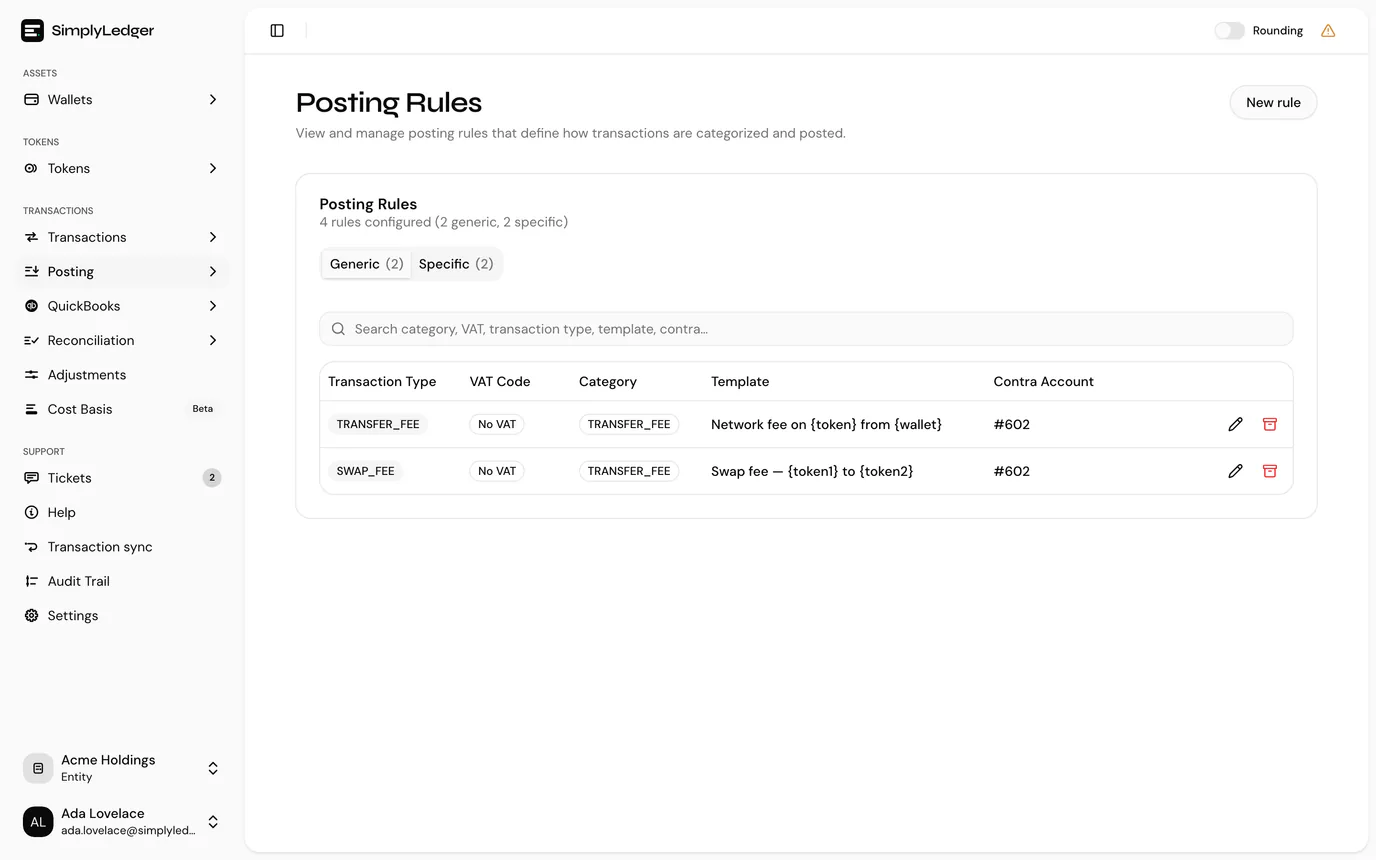
Defaults are what they sound like: a fee is a fee wherever it happens. Wallet & token rules handle the cases where the same transaction type means something different depending on which wallet it is in.
Both tabs show the transaction type, VAT code, category, template and contra account. Wallet & token adds the wallet, which opens the account page in a new tab, and the token with its holding type. The search box above the table searches whichever tab is open.
Creating a default rule
Select New rule in the page header. The New default rule page has two parts: When a transaction matches, which is the transaction type, and Fill in, which is what the rule sets.
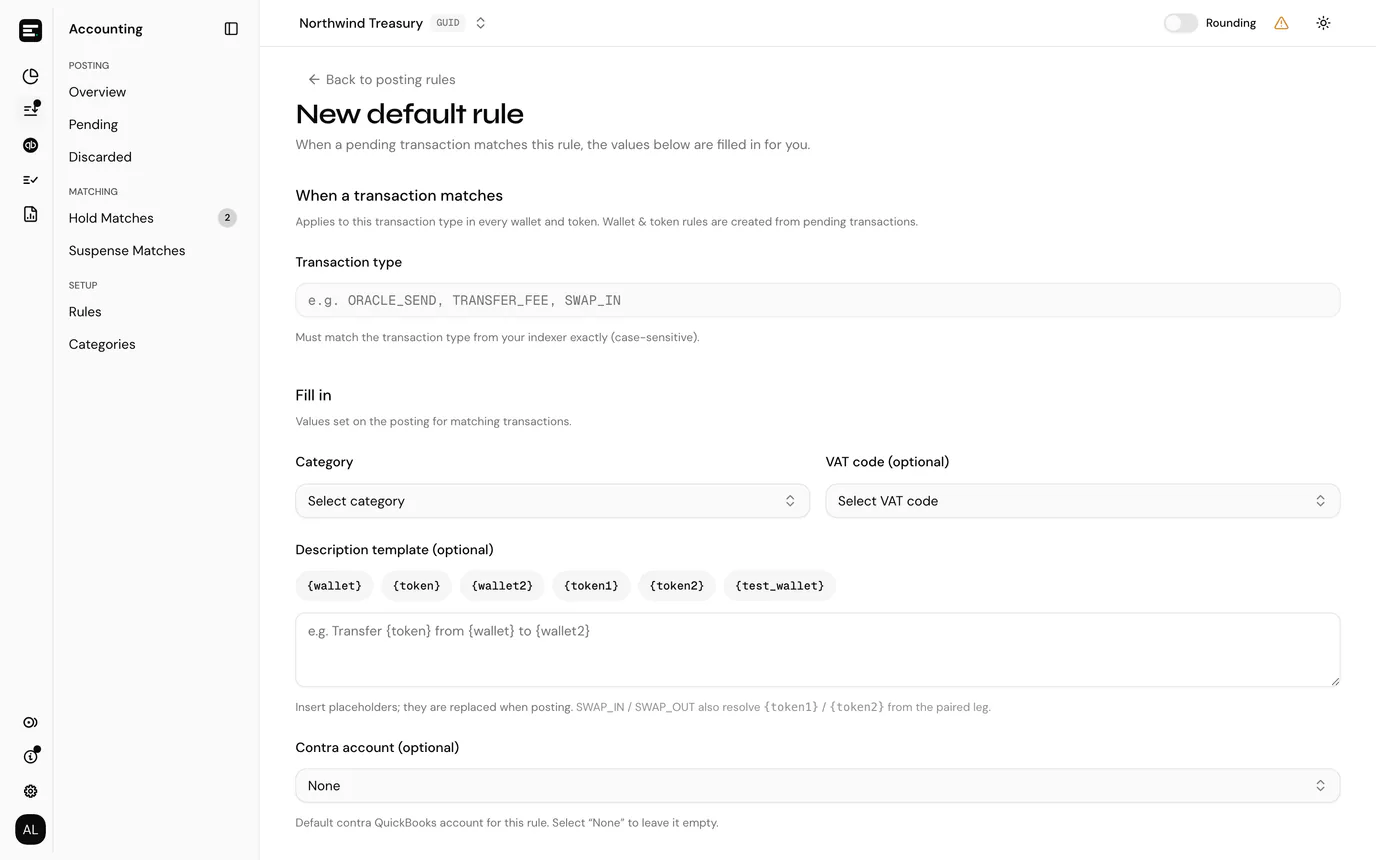
| Field | Notes |
|---|---|
| Transaction type | Required. Must match the transaction type string exactly as the indexer stores it, and it is case-sensitive: SWAP_IN, TRANSFER_FEE. Copy it from a pending row rather than typing from memory. |
| Category | Required. Drawn from your categories. |
| VAT code | Optional. |
| Description template | Optional. See below. |
| Contra account | Optional. Any synced QuickBooks account. None leaves the contra to be chosen at posting time. |
Select Create rule to save it, or Cancel to go back to the list.
Creating a wallet & token rule
Wallet & token rules are made from the posting screen rather than this page, because they are made out of a decision you have just taken.
On a pending row in Accounting → Posting → Pending, set the VAT code, category and contra, then use Save as rule (the floppy disk icon) on the row. The Save as posting rule? dialog offers:
- Save: store the rule and carry on
- Save and Apply: store it, then immediately fill every matching pending row
The rule is scoped to that row's wallet, token and transaction type.
Which rule wins
More than one rule can match the same row. A rule matches when the transaction type is identical, and:
- its wallet matches the row's wallet, or the rule has no wallet
- its token matches the row's token, or the rule has no token
- its holding type matches the row's token card, or the rule has no holding type
Among the matches, the most specific one wins, scored as wallet 2, token 1, holding type 1. So a wallet-and-token rule beats a token-only rule, which beats an entity-wide default. When two rules score equally, the most recently created one wins.
Templates fall back separately
If the winning rule has no description template, the first template found among the other matching rules is used. A single entity-wide rule carrying a good template therefore still describes rows that a narrower rule categorised.
Description templates
A template writes the posting description for you. The placeholder buttons above the field insert into the text at the cursor.
| Placeholder | Resolves to |
|---|---|
{wallet} | The wallet being posted from. |
{token} | The row's token symbol. |
{wallet2} | The contra: the wallet name, or the QuickBooks account name when the contra is an account. |
{token1} and {token2} | The two legs of a swap, on SWAP_IN and SWAP_OUT rows. On any other transaction type both resolve to the row's own token. |
{test_wallet} | The contra, the same as {wallet2}. |
So Transfer {token} from {wallet} to {wallet2} becomes Transfer USDC from Treasury Ethereum to Ops Wallet when the row is staged.
Applying rules
Apply Rules sits above the pending transactions table and runs over every listed row, filling VAT, category and contra wherever a rule matches. It tells you how many rows it filled, or says plainly that nothing matched.
It changes only the pending rows in front of you. Nothing is committed, and you can still override any field before staging.
Editing a rule
Edit at the end of a row opens the rule on its own page, Edit default rule or Edit wallet & token rule. Category, VAT code, template and contra can be changed, and wallet & token rules can also have their holding type changed. Select Save changes.
Wallet, token and transaction type are fixed. They are shown at the top of the page rather than as fields. To change any of those, archive the rule and create a new one. Those fields are what the rule matches on, so editing them would silently change which transactions it catches.
Three details worth knowing:
- Clearing a description template or a VAT code is not supported yet. Leaving the field as it is keeps the current value.
- On a wallet & token rule the contra is either a Token card or a QuickBooks account, chosen with the tabs, and one is required. Only token cards for the rule's own token are offered. On a default rule it is a QuickBooks account, and None clears it.
- A wallet & token rule always needs a Holding type. Hover the info icon beside it for what Available, Delegated and Unclaimed rewards mean.
Archiving
Archive rule, in the header of the edit page, removes a rule from use after a confirmation, and cannot be undone. Postings already made using it are untouched. A rule only ever filled in fields, so nothing about a past posting depends on it still existing.
Who can manage rules
Creating, editing and archiving rules need write access. Viewers see the list without New rule or Edit. See roles and permissions.
Next
Hold matches covers swaps and bridges, where the two legs of one movement have to be tied back together after posting.