
Review transactions
The Transactions page is the read-only history of everything SimplyLedger has indexed for this entity.
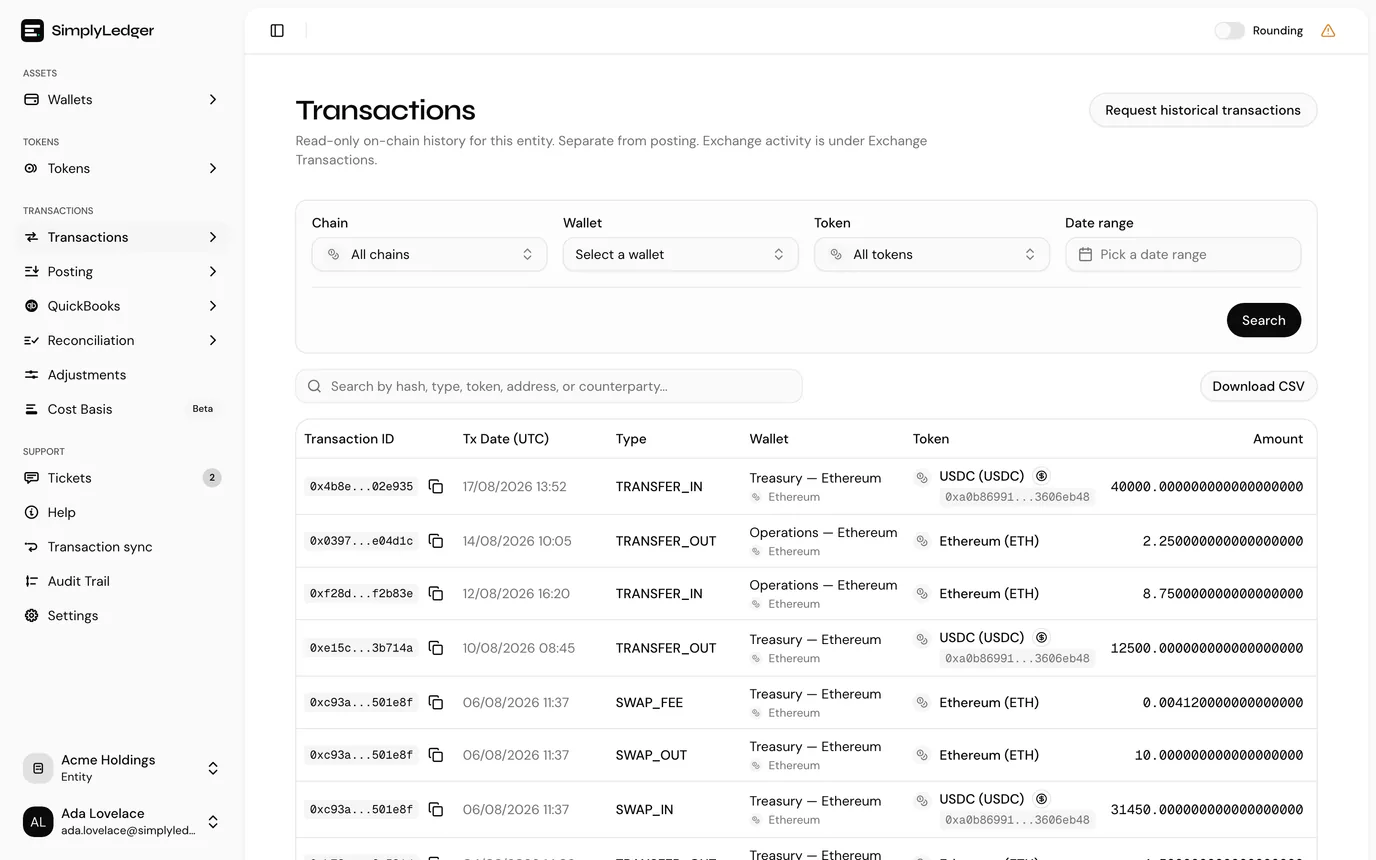
Reading, not posting
This page is deliberately separate from posting. Nothing you do here changes the ledger; it is where you check that what was synced matches what you expect. Turning transactions into ledger entries happens under Posting.
Account activity
On-chain activity is on this page. Select Portfolio in the sidebar's icon rail, then Wallet Transactions under Transactions. The other three kinds have their own pages in the same Transactions section, each appearing only once the entity holds an account of that kind:
- Exchange Transactions, for deposits, withdrawals, transfers and orders on a connected exchange.
- Custodian Transactions, for activity on wallets discovered from BitGo, DFNS or Fireblocks.
- Fiat Transactions, for the bank statement lines imported against a fiat account.
Reading the table
Each row stacks related fields so the table stays narrow. Every transaction table in SimplyLedger, including the posting ones, uses the same layout:
| Column | Shows |
|---|---|
| Transaction | The transaction hash, linked to the block explorer and copyable, with the date and time beneath it. |
| Type | The transaction type, such as TRANSFER or STAKING_REWARD. |
| Wallet | The account and its chain. |
| Amount / Value | The amount with its token symbol, and beneath it the value in the entity's currency. Hover the value for the price it was valued at. |
| Counterparty | The address on the other side. See below. |
Amounts use the thousands separator and decimal mark from the entity's number format preference in entity settings.
To reorder the rows, use Sort by above the table rather than the column headers: newest or oldest first, or by type, token or amount.
What posting does not change
This list is the indexed history, not a work queue, and nothing you do under Posting takes a row off it. A transaction stays listed here whether it is:
- pending, waiting in the posting queue
- posted, now carrying a ledger entry in posted transactions
- reverted, its posting undone and the transaction back in the queue
- discarded, deliberately taken out of the queue under discarded transactions
That is deliberate: it happened on chain, so it belongs in the history regardless of what you decided to do with it in the books. It is also why this page is the right place to check that something actually synced before going looking for it anywhere else.
Two things do take a row off the list, and neither of them is a posting decision. The indexer marking that account, token and UTC day unreconciled pulls that day's entries out until it reconciles again, and then they are rebuilt (see the posting overview). And a row somebody added by hand can be deleted outright, which an indexed on-chain row cannot.
The Actions menu
Actions, above the table, holds the three things you can do from this page:
| Action | What it does |
|---|---|
| Add transaction | Records a single transaction that the indexer will never see. |
| Upload transactions | Brings a CSV of them in at once. |
| Request historical txs | Queues a backfill of on-chain history. |
The first two need an account, because a transaction you enter has to belong to one. Until the Wallet filter names an account they stay greyed out, with the reason on hover. Requesting a backfill is entity-wide here, so it is available straight away.
The same menu is on each account's own page, where the account is already known and nothing needs picking first.
Adding transactions by hand
Some activity never reaches the indexer: an off-chain settlement, a transfer a node did not return, a historical position you are bringing across from another system. Add transaction and Upload transactions are how those get into the entity's history.
Both save straight away, and rows are then listed here like any other, so you can find and check them before anything is posted. They are also picked up by posting: they appear in the pending table, where you set VAT, category and contra and stage them as usual.
Check before you save
Check the account and the date before you save, especially on an upload. Uploading the same file twice is refused rather than doubled, so a repeat is safe, and a row that is wrong can be deleted afterwards.
Add transaction
The dialog asks only for what a transaction has: a transaction ID, the date and time, the token card it belongs to, a Tx type such as STAKING_REWARD, the amount, and an optional counterparty. A negative amount is an outflow.
There is no category or contra account here. Those describe a posting, not a transaction, and you choose them later on the pending row.
Upload transactions
The CSV needs a header row and four columns: date, tx type, token and amount. A counterparty and a transaction id are optional. Download a CSV template gives you the shape.
SimplyLedger matches your headers to those fields automatically where it recognises them, and asks you to map the rest. You then get a preview of what will be imported, with anything it cannot read listed separately by row number so you can fix the file rather than guess. The last step asks which token card each symbol in the file belongs to, so the imported rows carry the right contract address and can be posted.
One file can carry up to 1000 rows. Split anything larger.
The whole file is checked before any of it is saved. If one row is bad or is already in the entity, nothing is saved and the message names the row, so you fix that line and upload the file again.
Deleting a transaction you added
A row you added by hand or uploaded can be taken back out. Select the trash icon at the end of the row in the transactions list, then confirm.
The icon is on those rows only. An indexed on-chain transaction does not have one: it happened on chain, so it belongs in the history whatever you decide to do with it in the books. That is also the quickest way to tell the two kinds apart in the list. Deleting needs write access, so a viewer or guest sees no icon at all.
Deleting is permanent
The row leaves the entity's history and the pending queue for good, and there is nothing left behind to restore. To bring the same activity back, add or upload it again.
A posted transaction is reverted first. Where the row already carries a ledger entry, SimplyLedger reverts that posting and then deletes the row, and the confirmation message says so afterwards. You do not have to revert it by hand first.
That revert does everything a revert normally does, described under reverting a posting: an inverted pair is written, the QuickBooks journal entry is deleted, and a finalised reconciliation containing the posting is reopened. Where the posting settled a QuickBooks bill or invoice, the settlement is deleted with it and the document goes back to open. Deleting does not stop to ask which you want, because the transaction the payment came from is going too.
Counterparty and exporting
Counterparty is the address on the other side of the transaction. Where the indexer reported no other address, it shows a dash.
Email CSV, above the table, exports every transaction matching your filters and search, not only the page on screen. The list is too large to download in the browser, so the dialog names the address on your account; select Send and the file is generated in the background and emailed to you when it is ready.
Filling gaps
If on-chain activity you expect is missing, use Request historical txs under Actions. It queues a backfill, which you can follow on the historical sync page.
Check first that the account's chain is right. An address added under the wrong chain indexes nothing, and looks identical to a sync that has not run yet.
Next
With transactions in place, post a transaction to get them into the ledger.
In a portfolio entity there is no posting step. These transactions are already the record. Cost basis is not available in a portfolio entity, since it is built from postings.