
QuickBooks
Connecting QuickBooks lets SimplyLedger push journal entries to your accounting system and map its accounts, customers, and suppliers.
Connect before you post
Set QuickBooks up now, as part of standing your entity up, not after you have started posting.
Posting a transaction assigns it a category, and the account mapping you configure here is what decides which QuickBooks account that category lands in. Mapping first means entries push cleanly from the very first period. Mapping later means revisiting postings that have already been made.
Accounting entities only
QuickBooks is available in accounting entities, and is enabled per entity. If you cannot see it, an owner or admin can switch it on under QuickBooks settings.
A portfolio entity has no posting or QuickBooks section at all, so skip this page and go straight to adding an account.
Turn it on
QuickBooks is switched on from its own settings page. Select Settings at the bottom of the sidebar's icon rail, then Entity → QuickBooks. Only owners and admins have it.
The Connection card holds the QuickBooks integration switch. Its description says where you are: off, on but not connected, waiting for you to sign in, or connected. While it is on but not connected, Connect QuickBooks beside it starts the sign-in.
The feature switches in the card below (suspense matching, bills and invoices, unposted journal entries and manual journal entry ID) only appear once the integration is on.
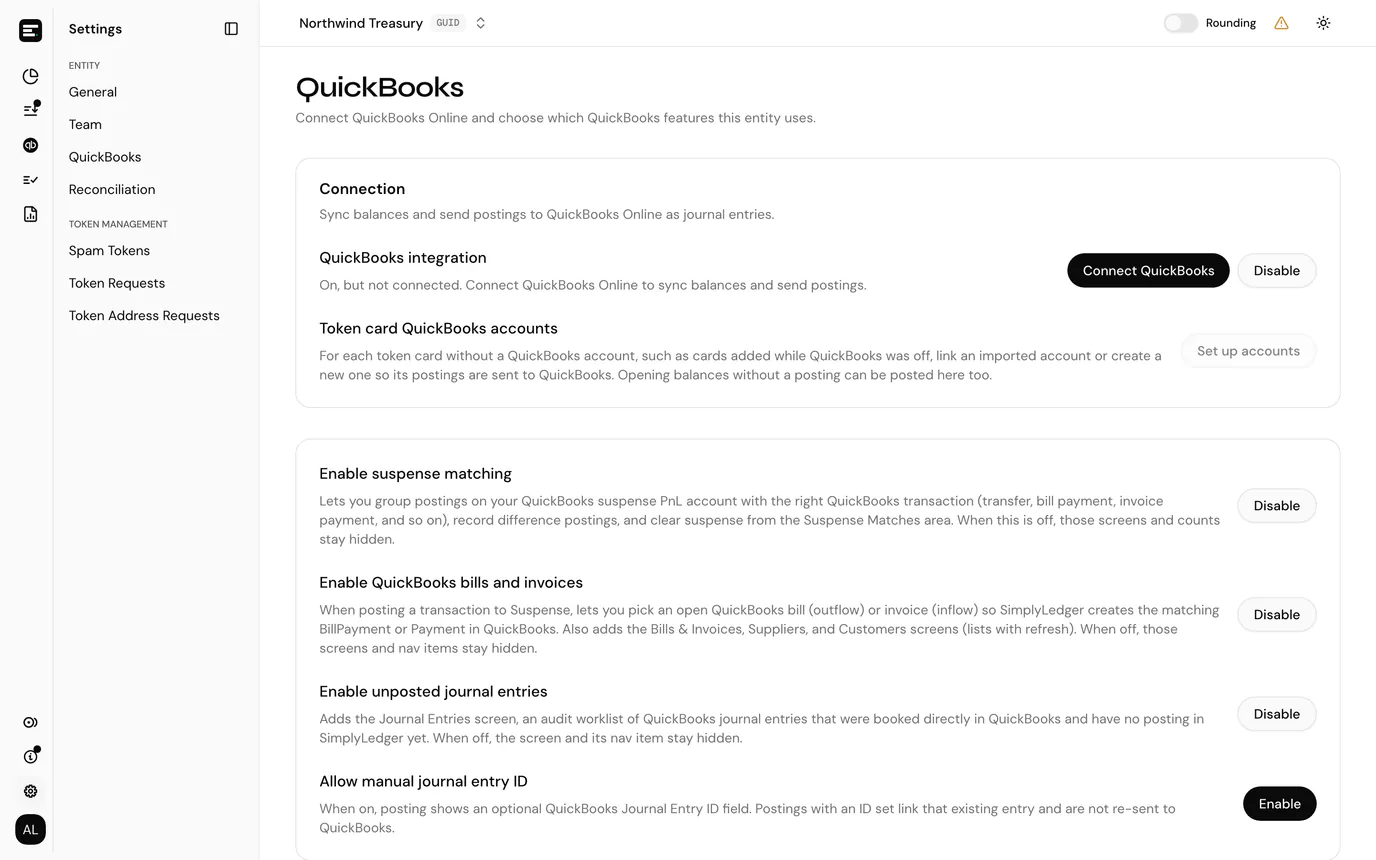
Turning it on after you have posted
You can turn QuickBooks on for an entity that has already been posting to its local chart of accounts. Those postings are not lost: they are sent to QuickBooks once it is set up. The confirmation says how many there are, and after it Finish setting up QuickBooks walks you through three steps:
- Connect QuickBooks. Sign in to QuickBooks Online in a new tab. The step ticks itself off as soon as you finish, without reloading.
- Set up token card accounts. Every token card created while QuickBooks was off has no QuickBooks account yet. Set up accounts opens a page to link each one to an imported account or create a new one, and to choose whether the postings made before linking are sent to QuickBooks or kept out as Local only. Keep them out when they are already in your QuickBooks books, so nothing is booked twice. The link is available once you are connected.
- Check your postings. Postings are sent in batches every 5 minutes, so a large backlog takes a while. Any that cannot be sent stay unsynced in posted transactions.
Finish later closes the steps. You can come back to them: Set up accounts stays on the QuickBooks settings page, under Token card QuickBooks accounts, while the integration is on. See token cards for linking a single card from its own page.
A token card's account cannot be changed
Once a card is linked to a QuickBooks account, that choice is permanent. Import the account you want first, rather than accepting Create new account by default.
Connect
The app header shows the connection state as a small icon: an amber warning triangle when disconnected, a green check when connected. Hovering it gives the wording (QuickBooks Disconnected. Click to Connect.), and selecting the disconnected icon starts the QuickBooks authorisation flow.
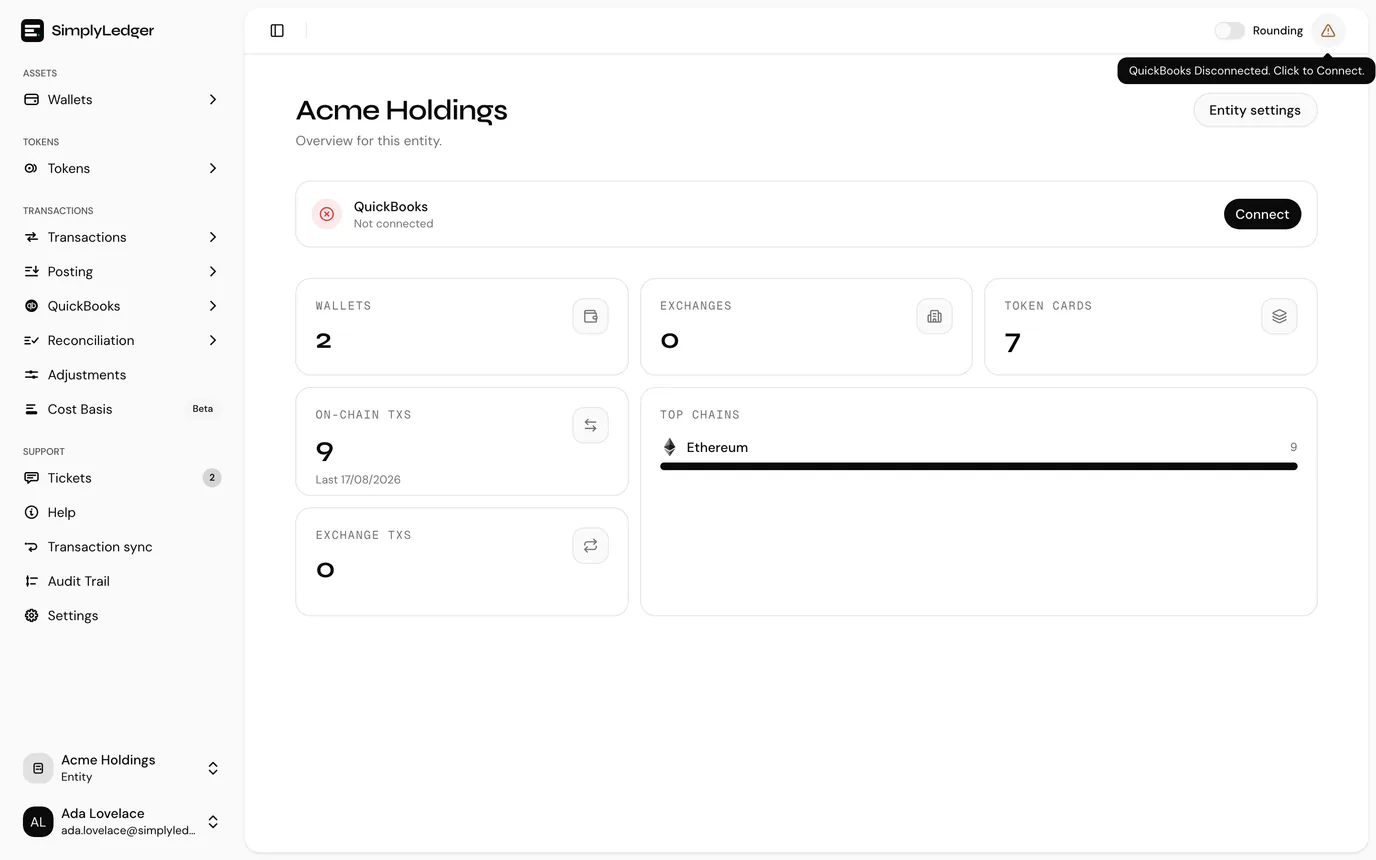
You sign in to QuickBooks in a new tab and approve access. Back in SimplyLedger, the header reads QuickBooks Connected as soon as sign-in finishes. If you closed the tab before finishing, Open QuickBooks sign-in again on the settings page reopens it.
Who can connect
Connecting requires write access to the entity, so viewers will not see the option. See roles and permissions.
Map your accounts
Chart of Accounts (select QuickBooks in the sidebar's icon rail, then General Ledger → Chart of Accounts) lists the accounts pulled from QuickBooks. Open one to see its details and the transactions against it.
Mapping is what makes posting meaningful: it decides which QuickBooks account a posted category lands in. Entries cannot be pushed correctly until the accounts they target exist and are mapped.
Work through this alongside your categories: every category you expect to post to needs an account on the QuickBooks side to land in.
Journal entries
Postings are sent to QuickBooks as journal entries by a background sync rather than at the moment you post, and that sync runs every 5 minutes. A posting you have just made is in SimplyLedger straight away; it reaches QuickBooks on the next run.
Two settings change how this works, both on the QuickBooks settings page:
| Setting | Effect |
|---|---|
| Enable unposted journal entries | Adds QuickBooks → General Ledger → Journal Entries, a worklist of entries booked directly in QuickBooks that have no posting in SimplyLedger yet. See journal entries. |
| Allow manual journal entry ID | Posting shows an optional QuickBooks Journal Entry ID field. A posting with an ID links that existing entry and is not sent to QuickBooks again. |
Decide these now if you can. Both change how entries are produced from the point they are switched on, rather than retrospectively.
Bills, invoices, suppliers and customers
When enabled for the entity, the QuickBooks area of the sidebar gains Payables (Bills and Suppliers) and Receivables (Invoices and Customers). Each caches what QuickBooks holds, refreshed on demand and by a background sync every 30 minutes.
The point of it is settlement: posting a transaction to your suspense account offers the open bills or invoices, and the one you pick is paid off in QuickBooks as part of posting. It needs both the bills and invoices setting and a suspense account, so bills and invoices covers setup, the picker, the document page, and reverting a linked settlement.
You can also raise the documents and parties themselves from SimplyLedger: bills, invoices, suppliers, customers, and the products and services invoice lines charge to. See create bills, invoices and parties.
These are separate feature toggles. An entity can use QuickBooks journal entries without them.
Suspense matching
Suspense matching groups postings against the QuickBooks suspense contra account, records difference postings, and lets you clear suspense from the Suspense Matches area. It is switched on per entity.
Switching it on is also what makes the Suspense account type available when adding an account, which bills and invoices depends on. An account imported as Suspense has to be of QuickBooks type Bank, because that is the only type QuickBooks accepts as the paying or receiving account on a settlement.
Use it when entries cannot be attributed cleanly at posting time and need resolving later, rather than blocking the period.
This is separate from hold matches, which pairs the two legs of a swap or bridge. Both are account types you import here; neither switches the other on.
If the connection drops
QuickBooks authorisation expires. When it does, the header returns to the disconnected state and entries stop being pushed. Reconnect from the same control, or from Connect QuickBooks on the QuickBooks settings page; your mappings are kept.
Next
With the integration in place, add an account so there is activity to post.