
Add a fiat account
A fiat account is a bank account: the euros and dollars an entity holds off-chain. It sits in the same Accounts list as your on-chain addresses and exchange connections, so cash and crypto reconcile the same way and appear together in the portfolio.
Nothing syncs into a fiat account automatically. There is no chain to index and no exchange API to call, so its transactions come from a bank statement CSV you upload.
Create the account
From Accounts, select Create, then Fiat account. The same button offers On-chain, Exchange and Custodian.
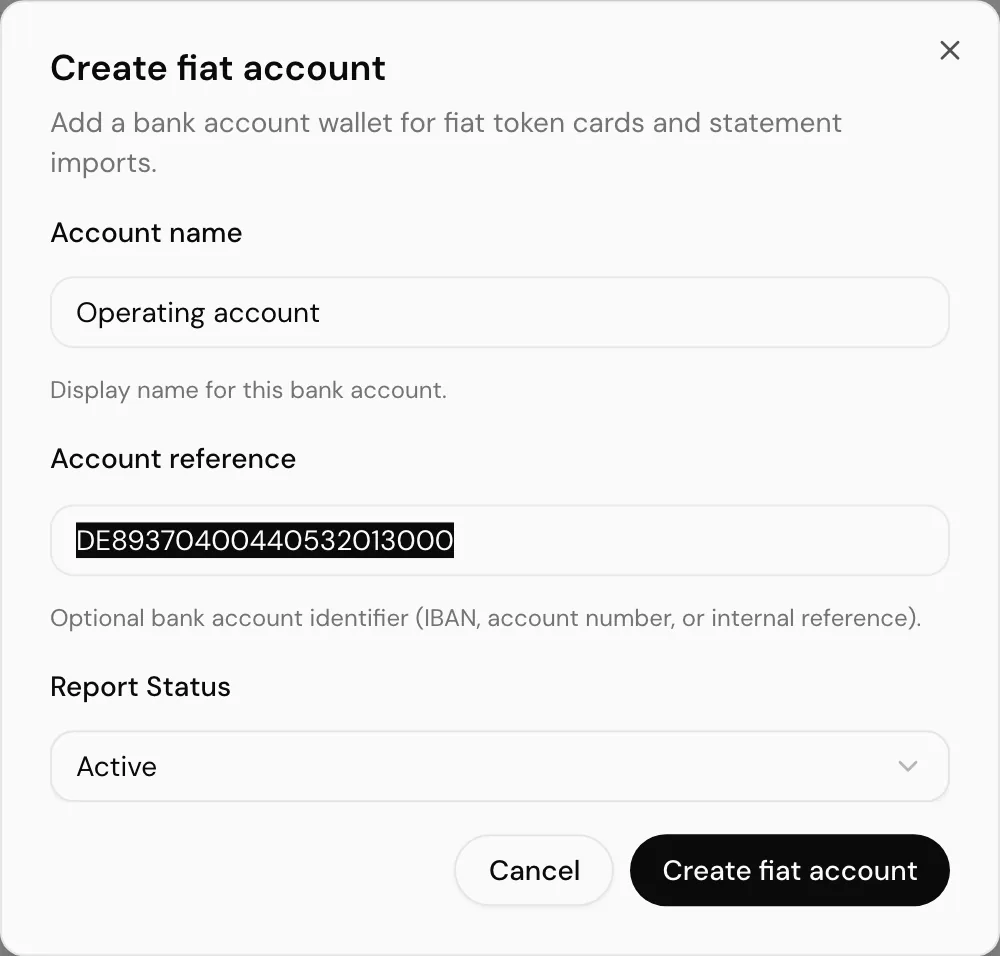
| Field | Notes |
|---|---|
| Account name | Display name for the bank account, up to 100 characters, for example Operating account. Required. |
| Account reference | Optional identifier: an IBAN, an account number, or your own internal reference, up to 255 characters. It is shown on the account page and is not validated against any bank. |
| Report Status | Active includes the account in reports; Inactive keeps it on record but leaves it out. |
Select Create fiat account to save. It appears under the Fiat tab of the accounts list.
Add a token card per currency
A fiat account holds currencies, not tokens, so each currency it holds needs a Fiat token card before a balance is tracked or anything is posted against it. An account holding both EUR and USD needs two.
| On a fiat account | |
|---|---|
| Token card type | Fiat only. Creating a crypto card on a fiat account is refused with crypto token cards are not allowed on fiat wallets. |
| Currency | Picked from the fiat tokens list. If the currency you hold is not there, raise a support ticket. |
| Holding type | Not applicable. Fiat cards have no holding type split. |
Fiat cards are priced from stored token prices, which is what lets a bank balance be valued in the entity's currency alongside everything else.
Import a bank statement
The account page carries a Bank statement import card that on-chain and exchange accounts do not have. It takes a CSV export from your bank.

- Choose file and pick the export. The file has to be a CSV and at most 10 MB.
- SimplyLedger reads the header row and matches what it recognises. The columns it matched are listed underneath as Mapped columns, each showing the field and the header it came from.
- Import uploads it. The rows are parsed, mapped and stored against this account.
- The result appears underneath as Parsed, Imported and Skipped counts, with any errors listed row by row.
Download sample gives you a CSV with the expected headers and a few example rows. Use it to check the shape of your own export before uploading a whole statement.
Map columns
Bank exports do not agree on what to call things. Map columns opens a dialog listing every field SimplyLedger reads, with the header it picked for each and a preview of that column's first value, so you can see whether the guess was right before importing anything. Required fields are marked with an asterisk, and Import stays disabled until all four have a column.
Use it when your export names a column something SimplyLedger does not recognise, and to check the guesses on a file you have not imported before. Matching is exact and case-insensitive, deliberately: a loose match risks silently reading the wrong column, and a mis-read State column would skip every row in the file as not completed.
What the file needs
Columns are read by name, so column order does not matter and extra columns are ignored. That is what lets most bank exports parse without editing. Anything not matched by name is yours to map.
| Column | Required | Notes |
|---|---|---|
ID | Yes | The bank's own reference for the line. It is what makes an import repeatable: re-importing a file updates the rows it already holds instead of duplicating them. |
Amount | Yes | A plain decimal. Positive is money in, negative is money out. Thousands separators, currency symbols and accounting parentheses are rejected rather than guessed at. |
Payment currency | Yes | The currency of the line, matched to the account's fiat token cards. |
Date | Yes, in one of three forms | A plain Date column. |
Date completed (UTC) | Preferred when present. Any column whose name contains Date completed is accepted, so regional exports such as Date completed (Europe/Malta) work as they come. | |
Date started (UTC) | Used when there is no completed date. Same name matching. | |
Fee | No | A non-zero fee is imported as a second row on the same reference, always as money out, described as the original line plus (fee). |
Type | No | Carried through as the line's type. |
State | No | Only rows reading COMPLETED are imported. Pending and cancelled rows are skipped silently, not reported as errors. |
Description, Reference | No | Combined into the description. A reference not already contained in the description is appended. |
Payer, Beneficiary name, Beneficiary IBAN | No | The first of these that is filled in becomes the counterparty. |
A statement needs a date in one of those three columns; which one does not matter, and a file carrying several uses the completed date first, then the started date, then Date.
Dates are read in a wide range of formats: ISO (YYYY-MM-DD, with or without a time and a timezone offset), day-first European forms (DD/MM/YYYY, DD.MM.YYYY, DD-MM-YYYY), month-name forms (02-Jan-2026, 2 Jan 26), and US MM/DD/YYYY. A value that is ambiguous between the two, such as 01/02/2026, is read day first, so that is 1 February. Anything without a timezone is interpreted as UTC.
Export the file unmodified
Opening a bank export in a spreadsheet and saving it again is the usual cause of a failed import: it reformats dates, adds thousands separators to amounts, or changes the separator. Upload what the bank gave you.
Reading the result
| Count | Meaning |
|---|---|
| Parsed | Lines read from the file, after State filtering. |
| Imported | Rows written, which can exceed Parsed because a line with a fee produces two. |
| Skipped | Lines that parsed but could not be mapped. Each is listed under Mapping errors with its row number and the bank's ID. |
Parse errors are lines the CSV reader could not read at all, listed by line number. Mapping errors are lines that were read but rejected, most often a missing currency, a blank or zero amount, or an amount that is not a plain decimal.
If the header itself is wrong the whole upload is refused before anything is written, naming the column that is missing.
Where the transactions go
Imported lines land under Portfolio → Transactions → Fiat Transactions, which only appears in the sidebar once the entity holds at least one fiat account. From there they behave like any other transaction: they queue for posting, and the account is reconciled per token card at period end.
See fiat transactions for the list itself.
Elsewhere in the app
- Portfolio carries a Fiat custodian card beside Exchanges and On-chain, listing balances per bank account with the currencies held there.
- Balances has a Fiat entry in its wallet type filter, and labels those rows Fiat in the CSV export.
- The entity dashboard counts fiat accounts alongside on-chain and exchange ones.
Common problems
"Wallet is not a fiat wallet". The import endpoint was called against an on-chain or exchange account. The card is only shown on fiat accounts, so this points at a link or an API call made outside the app.
Everything imported but no balance moved. The currency has no Fiat token card on this account, so nothing has anywhere to sit. Add the card and import again; the same ID values update in place rather than duplicating.
Rows are missing and are not in the errors. They were filtered by State: only COMPLETED lines are imported.
Next
Fiat transactions for what happens to the imported lines, or token cards for the per-currency setup.