
Reports
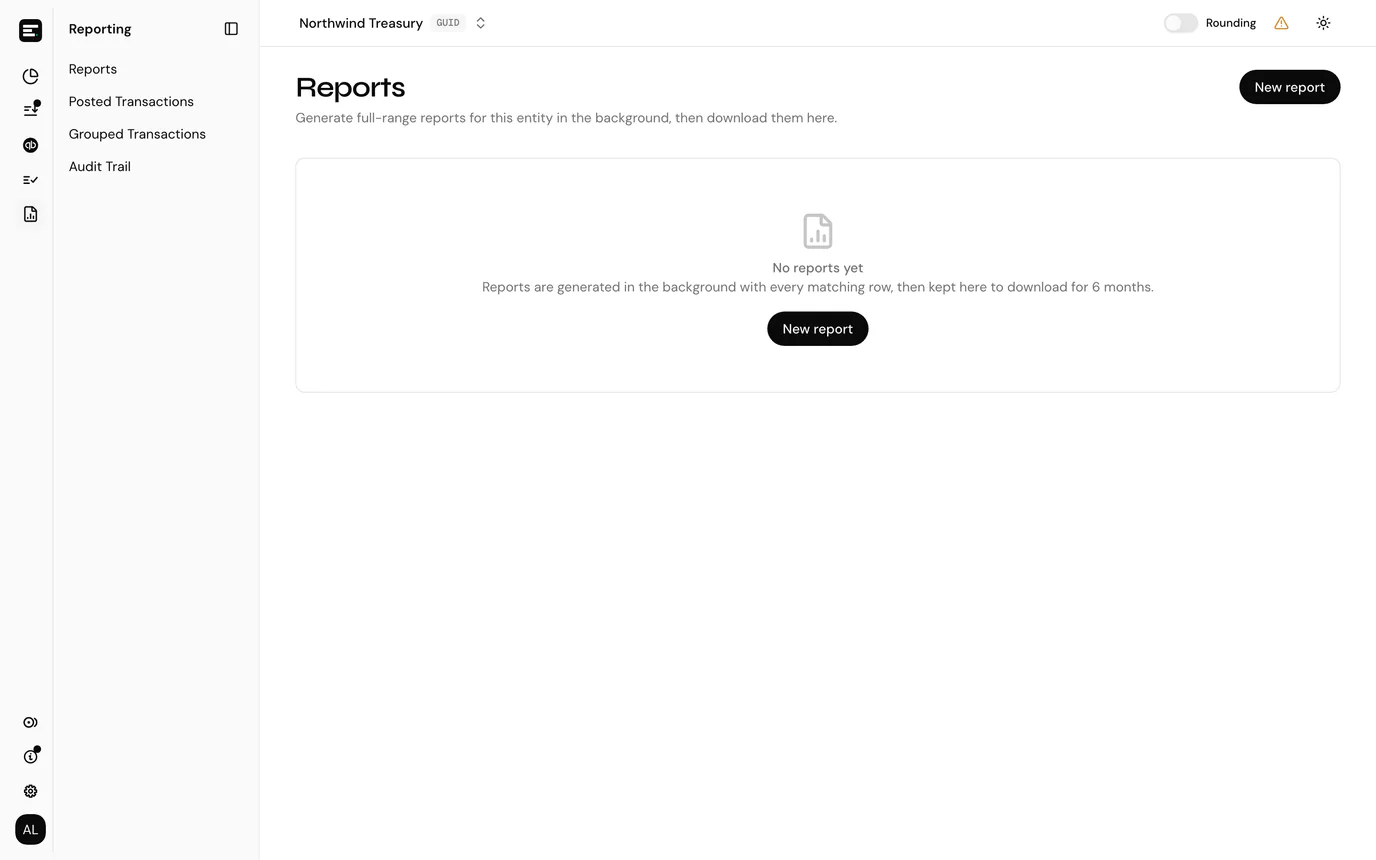
Reports is the entity's report centre. You queue a report with its dates and format, it is generated in the background from every matching row, however many there are, and the finished file waits in the report history for anyone in the entity to download. Use it for a full year or any range too long to page through.
Select Reporting in the sidebar's icon rail, then Reports.
Accounting entities only
Reports is part of the Reporting area, which portfolio entities do not have. Guests cannot open it either. Viewers can: generating a report only reads data, so it is allowed on a view-only role. See roles and permissions.
The reports on offer
| Report | What it holds | Dates | Formats |
|---|---|---|---|
| Postings journal | Every active journal posting with its accounts, amounts, values and categories. Reverted postings are left out. | Period, optional | CSV |
| Transaction ledger | On-chain and exchange transactions across all accounts, with prices and values. | Period, optional | CSV |
| Balances as of date | Ledger quantity, book value and market value of every token card at the end of a day. | As of date | CSV |
| Realized PnL | Cost basis and realized gains per token and period, for every token with a cost basis opening balance. | Period, optional | CSV |
| External end-of-day balances | On-chain and exchange balances collected at the end of a day, per token card. | As of date | CSV or PDF |
External end-of-day balances is only available to entities SimplyLedger runs internally. On other entities it is listed but greyed out, with the reason underneath.
Queue a report
Select New report.
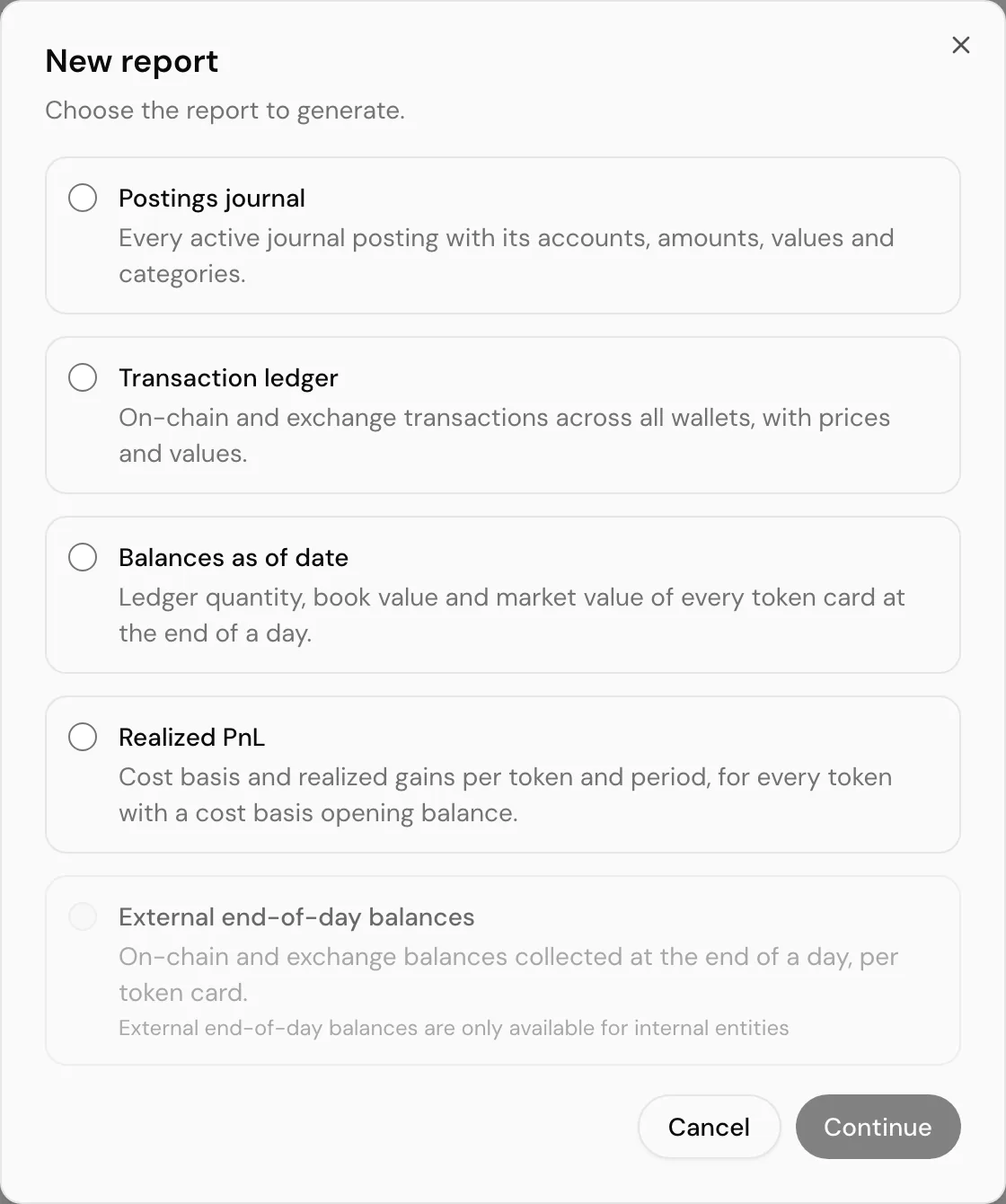
Pick the report and select Continue.
Fill in its dates:
- A Period is a date range. Leave it empty for all dates, or use a quick range such as Last month, Quarter to date, Year to date or Last year.
- An As of date is a single day. It starts on the latest day that has a closing balance, which is yesterday.
Choose the Format, where the report offers more than one.
Switch on Email me when it's ready if you want an email when the file is done, rather than checking back.
Select Generate report.
A Report queued notification confirms it, and the report appears at the top of the history.
Report history
The history lists every report generated in the entity, newest first, whoever asked for it.
| Column | Shows |
|---|---|
| Report | The report's name. |
| Parameters | The dates it covers: a date range, As of a day, or All dates. |
| Format | CSV or PDF. |
| Requested by | Who queued it. |
| Requested | When it was queued. |
| Status | Where it has got to, below. |
| Status | Meaning |
|---|---|
| Queued | Waiting to be picked up. |
| Generating | Being built. The page keeps checking while any report is in progress, so there is no need to reload. |
| Ready | Done. The row shows how many rows it holds and the file size, and Download saves it. |
| Failed | It could not be built. Hover the badge for the reason. |
| Expired | The file has been deleted after its 6 month retention period. |
Filter the list by report and by status with the two selectors above it.
Regenerate, on a ready, failed or expired report, queues the same report again with the same dates and format. Use it for an expired file, after fixing whatever made one fail, or to pick up data that has changed since.
Generated files are kept for 6 months and then expire. The email, if you asked for one, says until when.
Downloads from other pages
The report centre replaces the emailed report cards and the shortcut cards to other pages that Reports used to have. Pages that hold a list still have their own CSV download for the rows on screen, with your filters applied.
Common problems
A report is stuck on Queued or Generating. Large entities take a while. A report is given up to 30 minutes before it is marked Failed. If it fails, Regenerate it, and raise a support ticket if it fails again.
External end-of-day balances cannot be picked. It is only offered to internal entities.
The email never arrived. Check spam first. The email goes to the address on your own account, and only if you switched on Email me when it's ready. The file is in the history either way.
Next
The audit trail, also under Reporting, for who changed what in the entity.