
Account details
Selecting an account from the accounts list opens its own page: what it is, what it holds, what it is worth over time, and the few actions that only apply to one account.
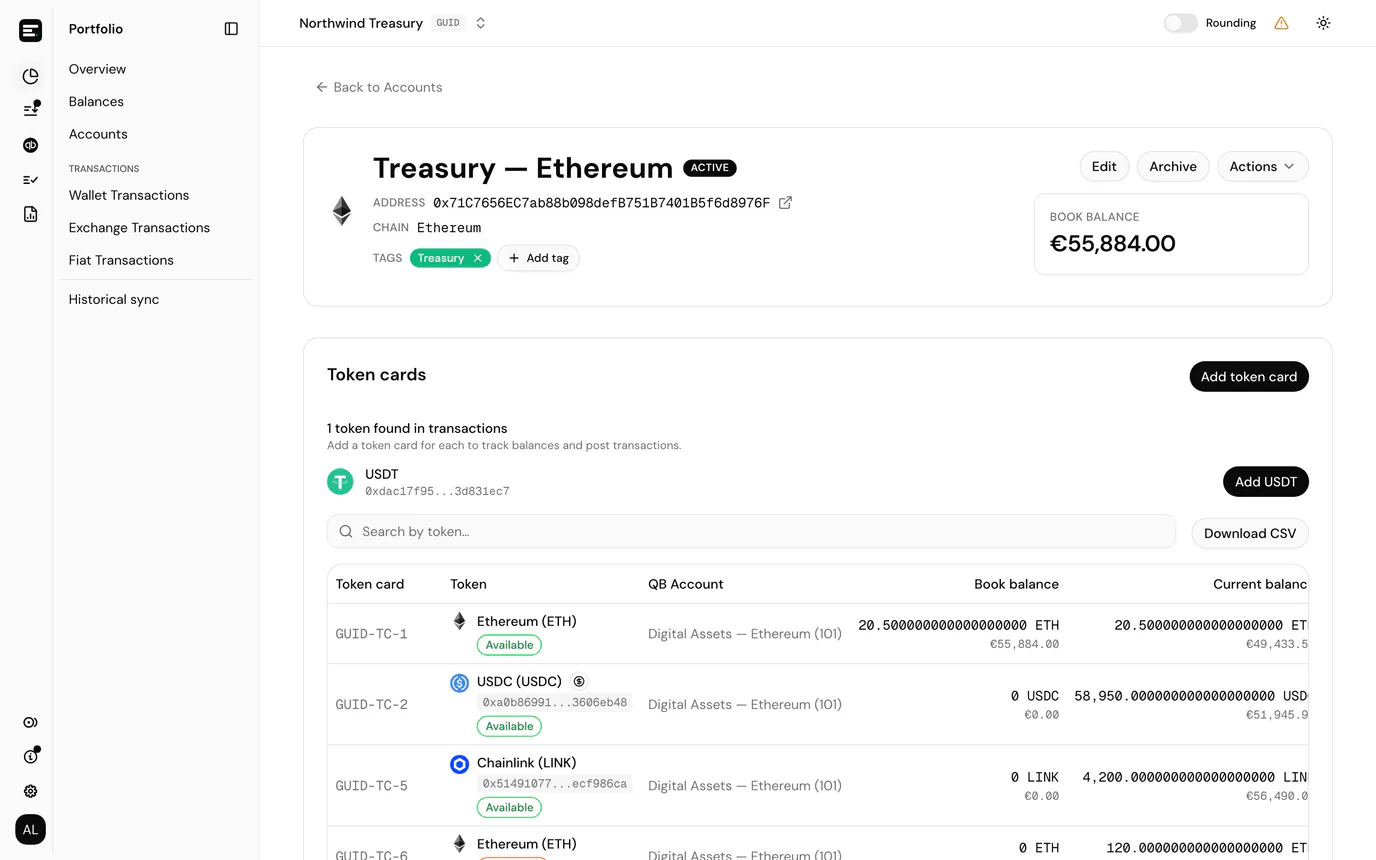
The header
What the header shows depends on the kind of account:
| Kind | Shows |
|---|---|
| On-chain | Its Address, with a link out to the block explorer for its chain, and the Chain itself. |
| Exchange | Its exchange's logo. |
| Custodian | Its provider's logo when the wallet was discovered from BitGo, DFNS or Fireblocks; Address and Chain for on-chain custodian wallets. Off-chain trading accounts (such as a BitGo Go Account) omit the address. |
| Fiat | Its Account reference, when one was given. |
All kinds show the account's public reference (for example SVC-W-1) in the header and in the # column of the accounts list (that is the ID used in the URL, not an internal number), plus:
- the account name, with ACTIVE or INACTIVE beside it, the report status set when it was created
- its Tags, which can be applied and removed here as well as on the list. See account tags.
- its Book balance, valued in the entity's currency, in accounting entities only. A portfolio entity keeps no books, so its current balances are on the token cards below instead.
Edit and archive
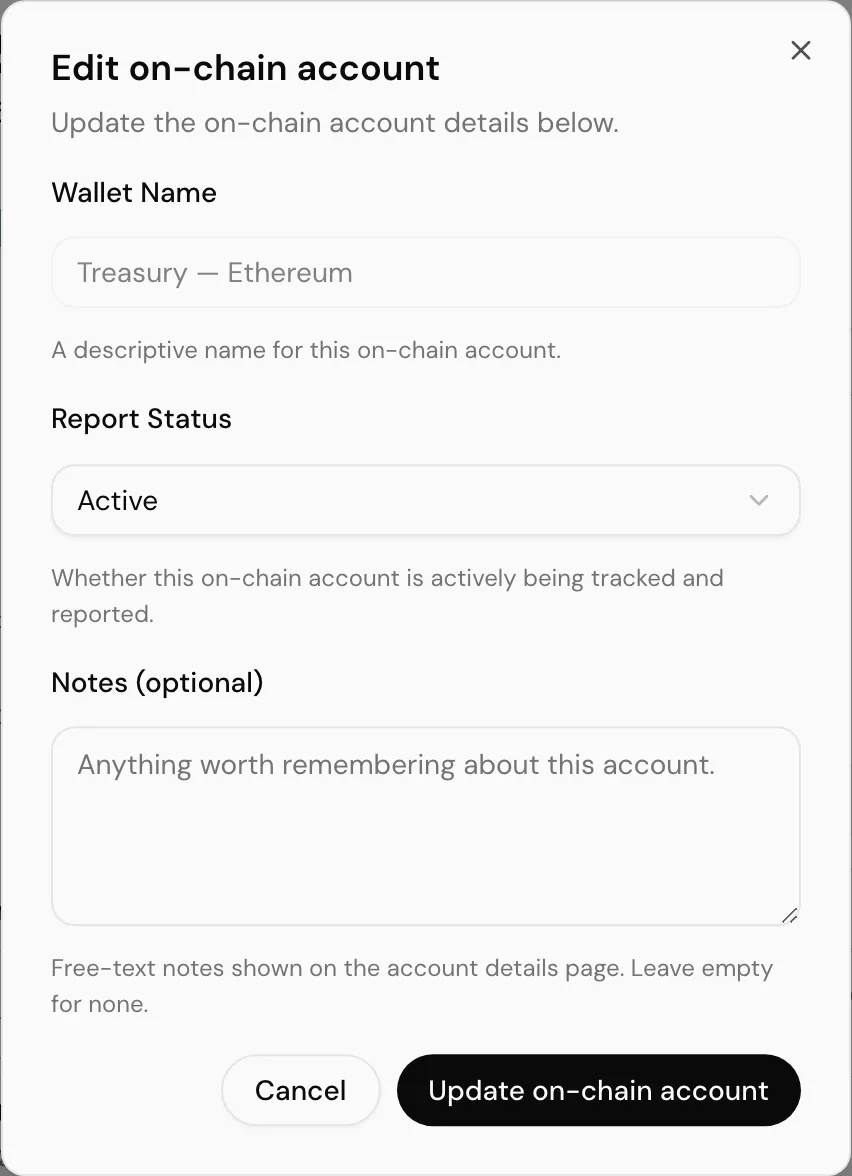
Edit opens a dialog where you can change the report status between Active and Inactive, and set Notes (optional), free text of up to 2000 characters kept against the account. Use it for the things that are not fields: what the account is for, who owns it, how often it is reconciled. Notes appear on this page under the tags, and only when there are some, so an account without them shows nothing rather than an empty heading. Clearing the box removes them.
The account name is shown but cannot be changed from here. It is fixed at creation for on-chain and custodian accounts, and comes from the provider for discovered custodian wallets.
Archive takes the account out of day-to-day use after a confirmation, worded for the kind you are archiving.
Archiving keeps everything already synced, the transactions, postings and history all stay. It is the right action for an account you have stopped using; deleting history you have already posted against is not offered, for good reason.
The Actions menu
Actions, beside Edit and Archive, holds the things that add transactions to this account:
| Action | What it does |
|---|---|
| Add transaction | Records a single transaction the indexer will never see. Accounting entities only. |
| Upload transactions | Brings a CSV of them in at once. Accounting entities only. |
| Request historical txs | Queues a backfill of on-chain history. On-chain accounts only. |
In a portfolio entity the menu holds only Request historical txs, so it appears on on-chain accounts and not on exchange or fiat accounts. Transactions there come from the sync alone.
The account is already known from the page you are on, so nothing needs picking first. The same menu is on Transactions, where you choose the account in the filters instead.
Adding and uploading are covered in full under adding transactions by hand: the rows are saved to the entity's transactions and then appear in the pending table for posting like any other.
Request historical transactions
Syncing keeps up with new activity, but an account added today does not automatically carry years of past transactions. Request historical txs, under Actions, asks the indexer for a specific window.
The dialog is titled Request historical transactions. Pick a date range on the two-month calendar, up to today, and select Queue sync. The dialog then shows the request's status and a progress percentage, updating as the indexer works, and reports an error message if the request fails.
Dates are UTC
The range is interpreted in UTC, not your local timezone. When you need a boundary day exactly, extend the range by a day on each side and let the duplicate detection handle the overlap.
The request runs in the background. You can close the dialog; progress also appears under historical sync (Portfolio → Historical sync), which can queue the same job for any on-chain account without opening its page.
This item is on on-chain accounts only. Exchange history comes back through the exchange's own API when the credentials are connected, custodian history through the provider's daily sync, and a fiat account's history comes from a statement import.
View API key
On an exchange account connected by API credentials, View API key shows what is currently attached:
- the key's name
- a preview of the key, the first characters only, never the whole value and never the secret
- the date it was connected
The trash icon disconnects it after a confirmation. The account stays in your ledger with all its history; only the credentials go, and you can reconnect at any time. That is the sequence to use when an exchange key expires or is rotated, rather than creating a second account, which would double up the history.
If no key is attached, the dialog offers the reconnect form directly. See connect an exchange.
Nexo accounts show Manage CSV instead, which opens the Nexo integration.
Exchange and custodian orders
An exchange account carries an Orders card the others do not have, listing the orders pulled from that exchange. Custodian accounts discovered from a provider that supports trading (today the BitGo off-chain Go Account) carry the same card. Each order expands to its individual trades, the fills that made it up. See exchange transactions and custodian transactions.
The card can be searched by order ID or token symbol and sorted by column. Email CSV exports it: the list is paged on the server and can run to thousands of orders, so rather than downloading one page, the whole export (every order matching your search) is generated in the background and emailed to the address on your account. Confirm with Send in the Email CSV export dialog.
Bank statement import
A fiat account carries a Bank statement import card instead, which is the only way transactions reach it. See add a fiat account.
Token cards
Every token card on this account is listed, with Add token card to create another. A token or currency needs a card here before its balance is tracked or anything can be posted against it. Each card shows its Current balance, with its value in the entity currency.
In an accounting entity the list also shows each card's Book balance and Last recon date, so an account with a card nobody has closed a period for is visible at a glance.
In a portfolio entity, the cards for a new on-chain account or exchange are created for you in the background. Open the account straight after adding it and the list fills in on its own over the next few moments, each card's current balance appearing as soon as it has been fetched.
Balance over time
The chart at the bottom plots this account's value over time, from the daily balances collected for it. Under the title, the 24h, 7D and 30D figures show the percentage change from that day's close to the latest one, whatever range the chart is showing; a dash means there is not enough history yet.
A flat line running to today on an account you know is active usually means balance collection has stopped, not that nothing moved.
A new account shows No balance history yet until its first close. Balances are recorded at each day's close (00:00 UTC), so the chart starts filling in after the next one; the current balances are already on the token cards above.
Next
Token cards for the per-token setup this page links into.