Add a wallet
Adding a wallet tells SimplyLedger which on-chain address to track. Once added, transactions for that address are synced and become available to post.
Open the wallets page
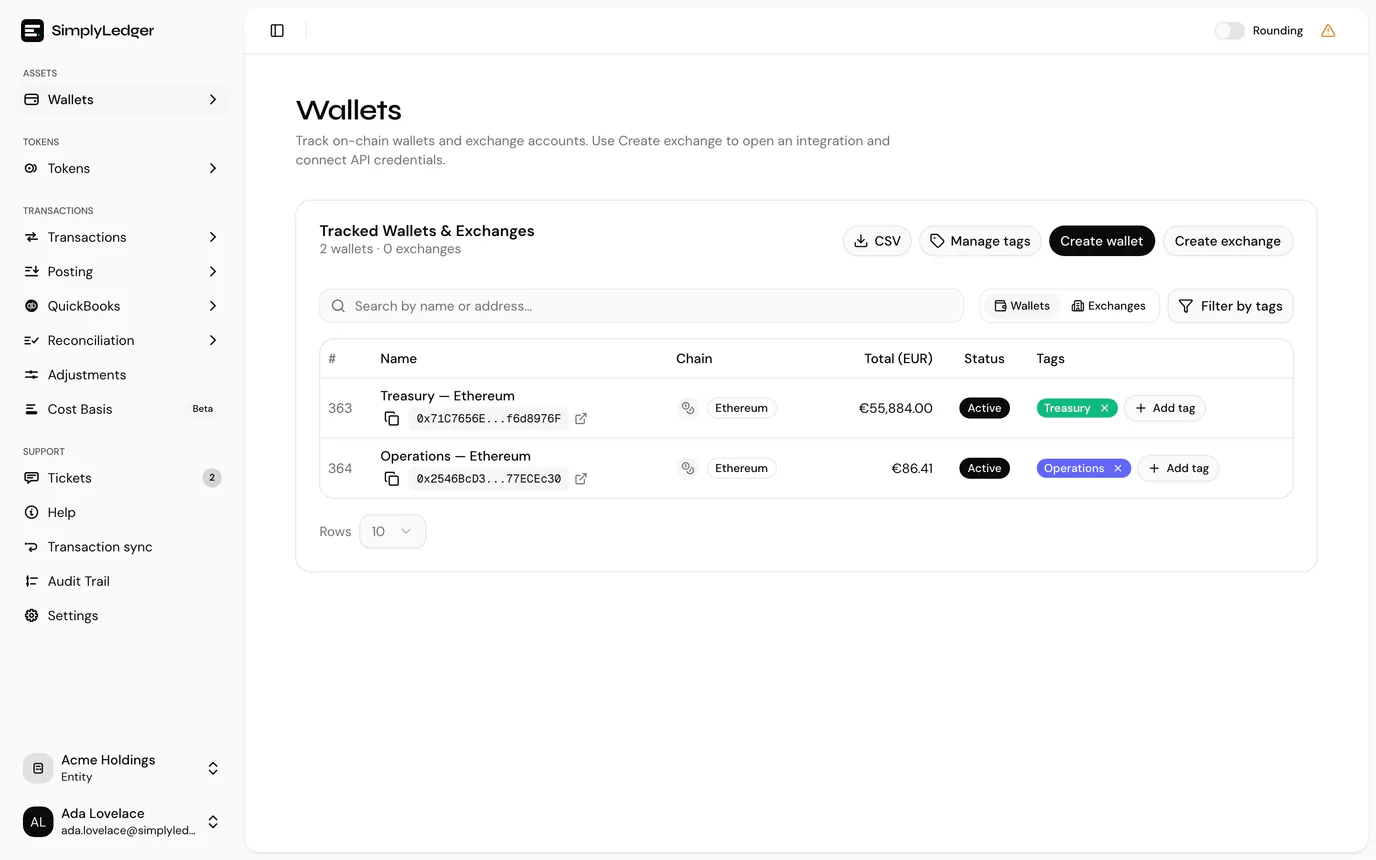
From the sidebar, select Wallets.
Create the wallet
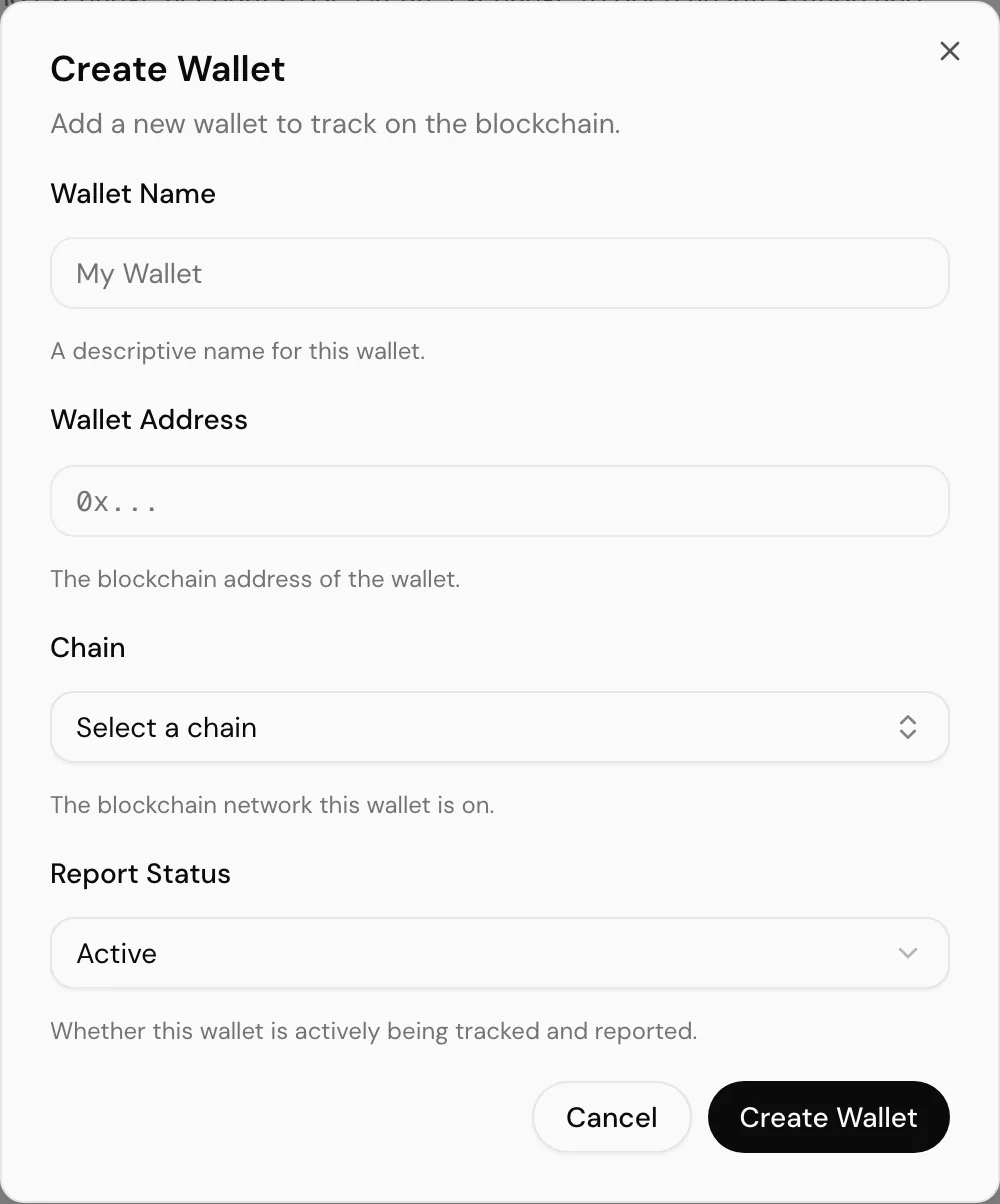
Select Create wallet to open the dialog.
| Field | Notes |
|---|---|
| Wallet Name | A descriptive name for this wallet, up to 100 characters. This is what you will see throughout the app, so make it meaningful, for example Treasury Ethereum rather than Wallet 1. |
| Wallet Address | The blockchain address, up to 255 characters. Paste it rather than typing it. |
| Chain | The network this address is on. Choosing the wrong chain means no transactions will be found. |
| Report Status | Active includes the wallet in reports; Inactive keeps it on record but leaves it out. |
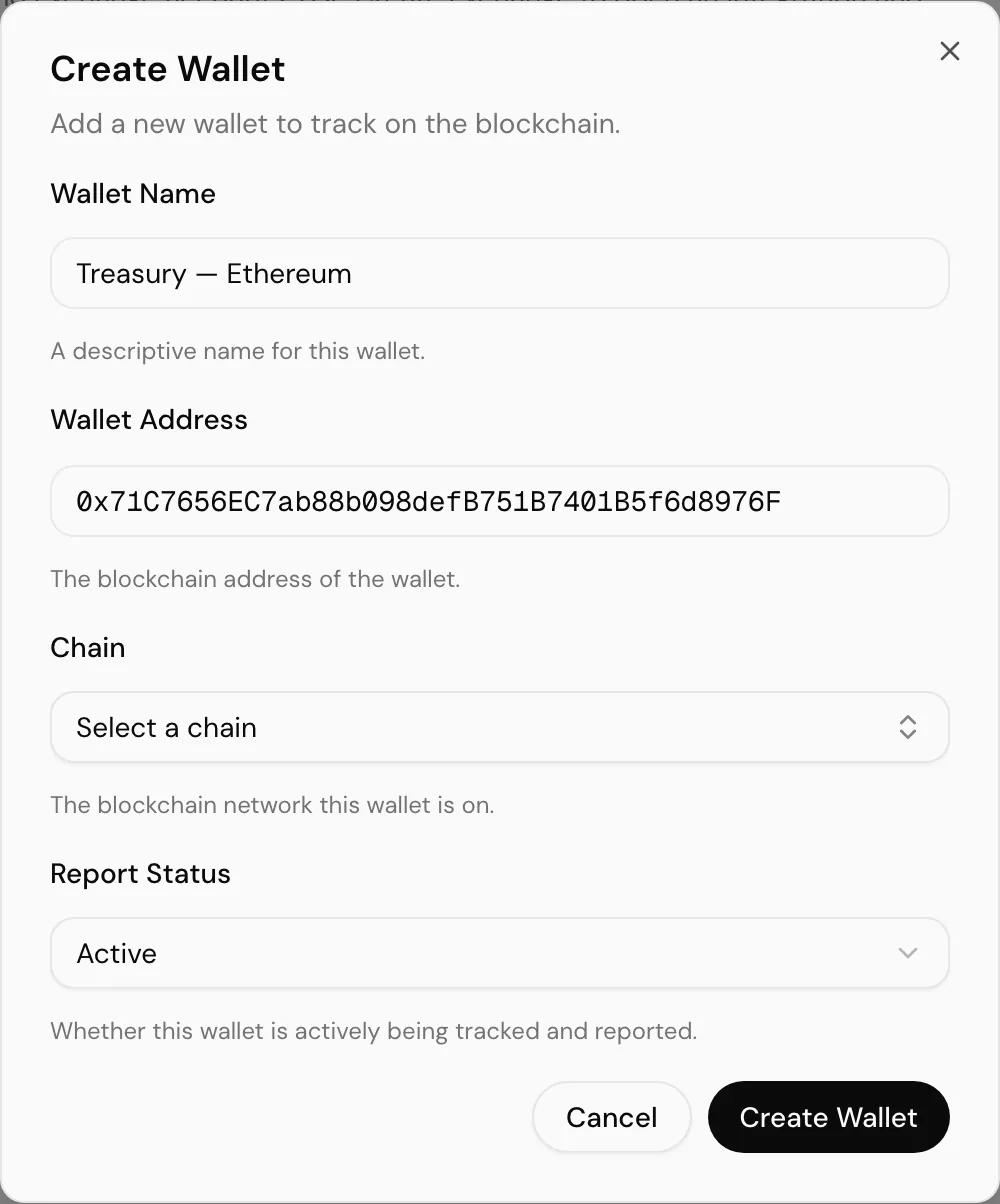
Select Create Wallet to save. The new wallet appears in the list and transaction syncing begins. Its balances then show up in Portfolio.
Common problems
The address is rejected. Check for a truncated paste. Addresses copied from block explorers are sometimes shortened for display (0x71C7…976F). You need the full address.
No transactions appear. Confirm the chain matches the address. An address that exists on several networks will only sync the chain you selected; add it once per chain if you need all of them.
Next
Connect an exchange if you also hold assets on a centralised exchange. Otherwise the wallet needs a token card per token it holds before anything can be posted against it.